How-To Guides · Tech help
How to Video Call on Google Meet (for First-Timers)
Want to see family or friends face to face, from your computer? Google Meet is free with a Google account. Here's how to join a call, or start one yourself.
1. Joining A Call
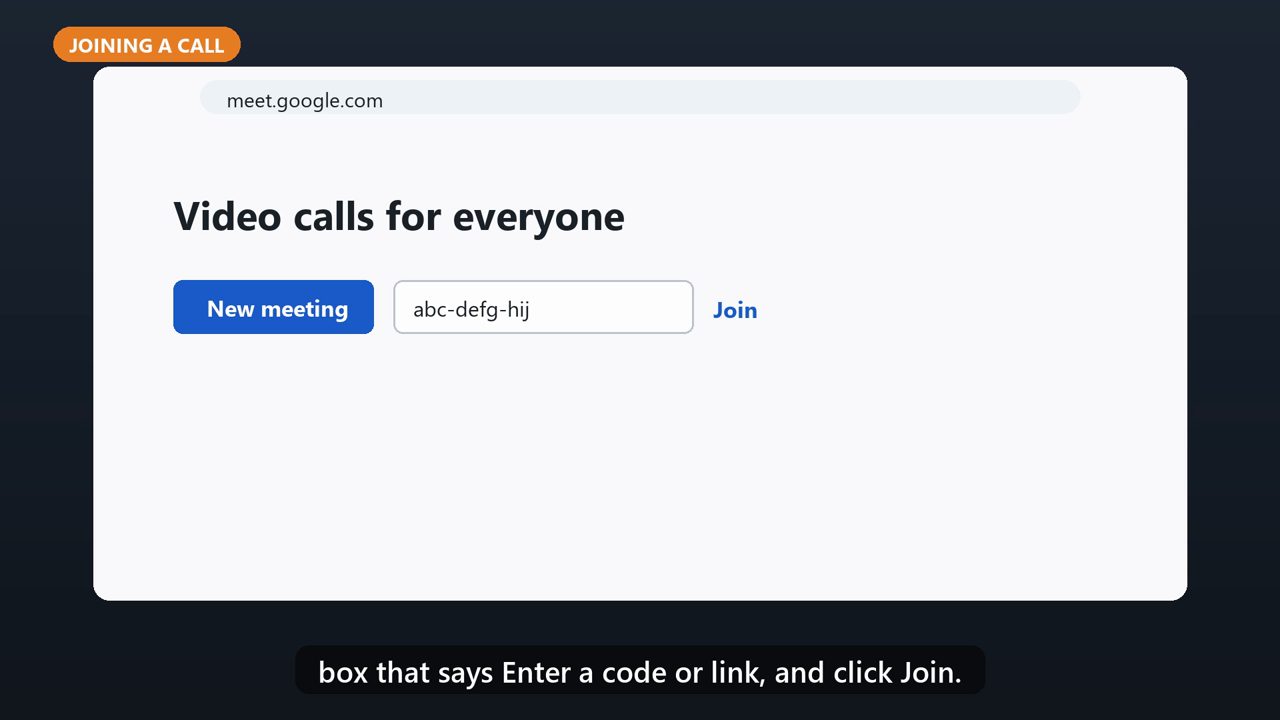
If someone sent you a link, just click it. Or go to meet.google.com, type the code they gave you in the box that says Enter a code or link, and click Join.
2. First Time? Allow Camera And Mic
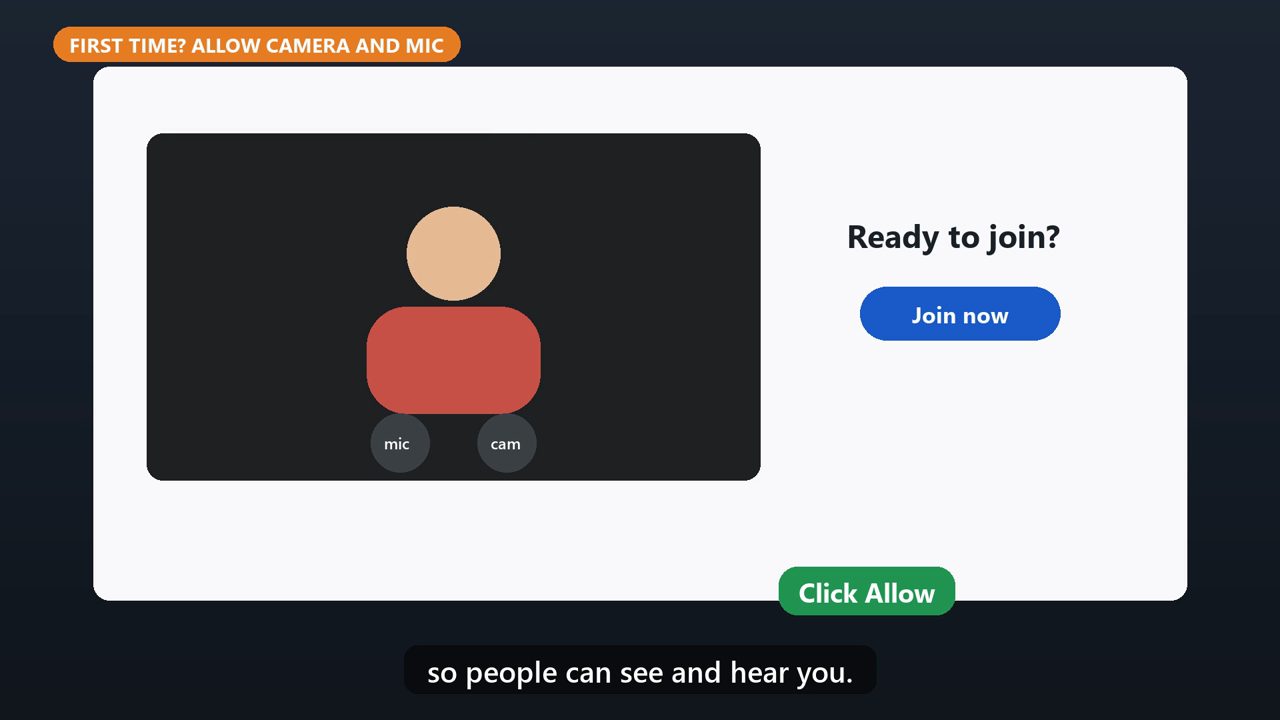
The first time, your browser will ask to use your camera and microphone. Click Allow, so people can see and hear you.
3. Check, Then Join
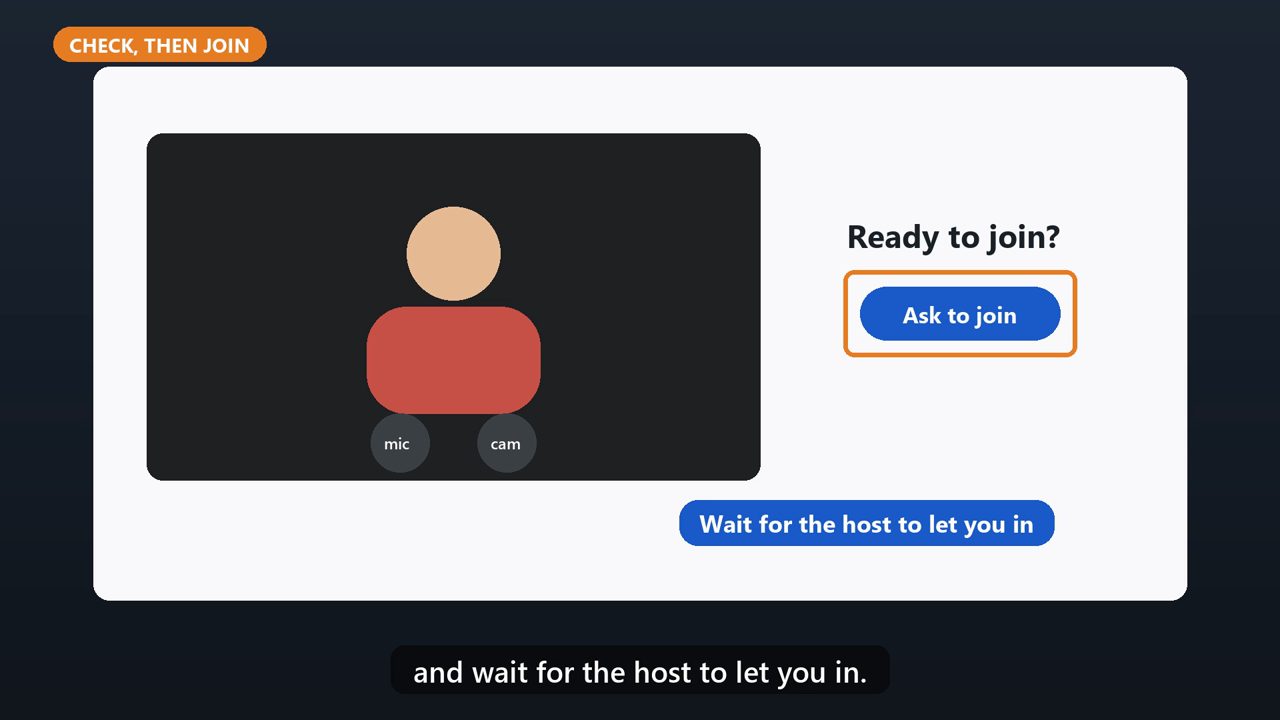
You'll see yourself in a preview. When you're ready, click Join now. If it says Ask to join, click it, and wait for the host to let you in.
4. Starting Your Own Call
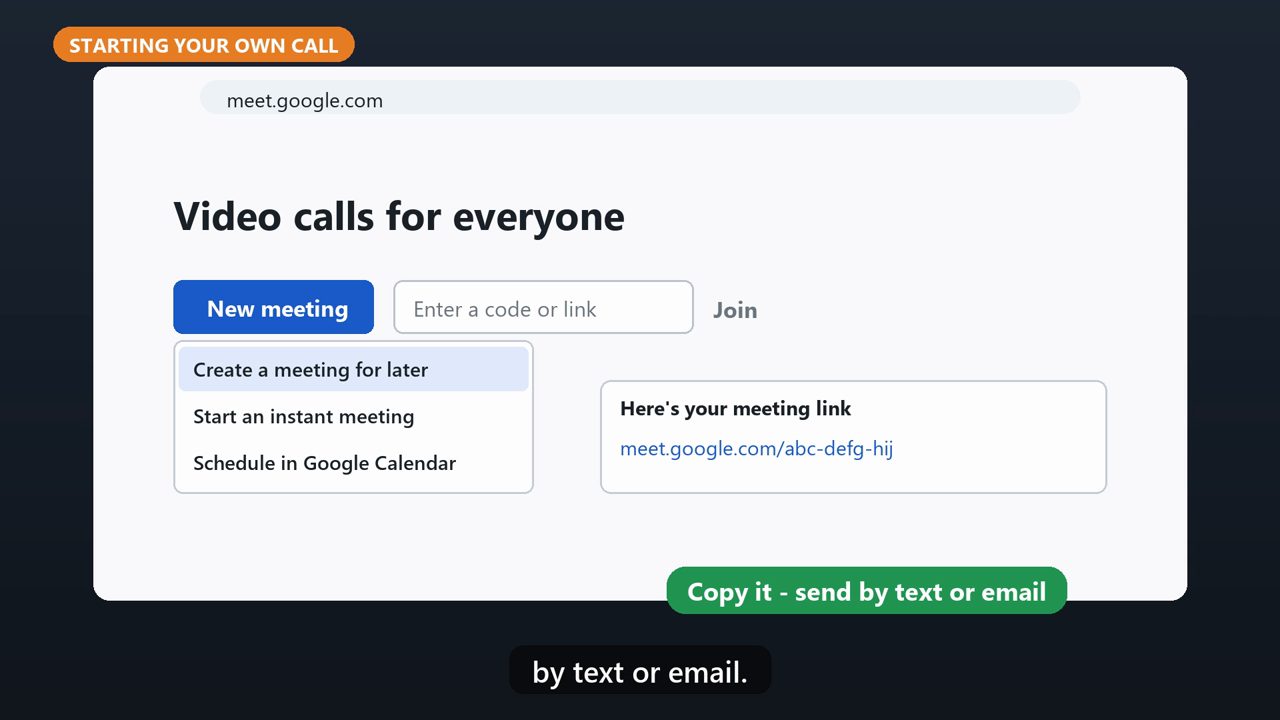
To start your own call, click New meeting. Choose Create a meeting for later, and copy the link. Send that link to the people you want on the call, by text or email.
5. During The Call
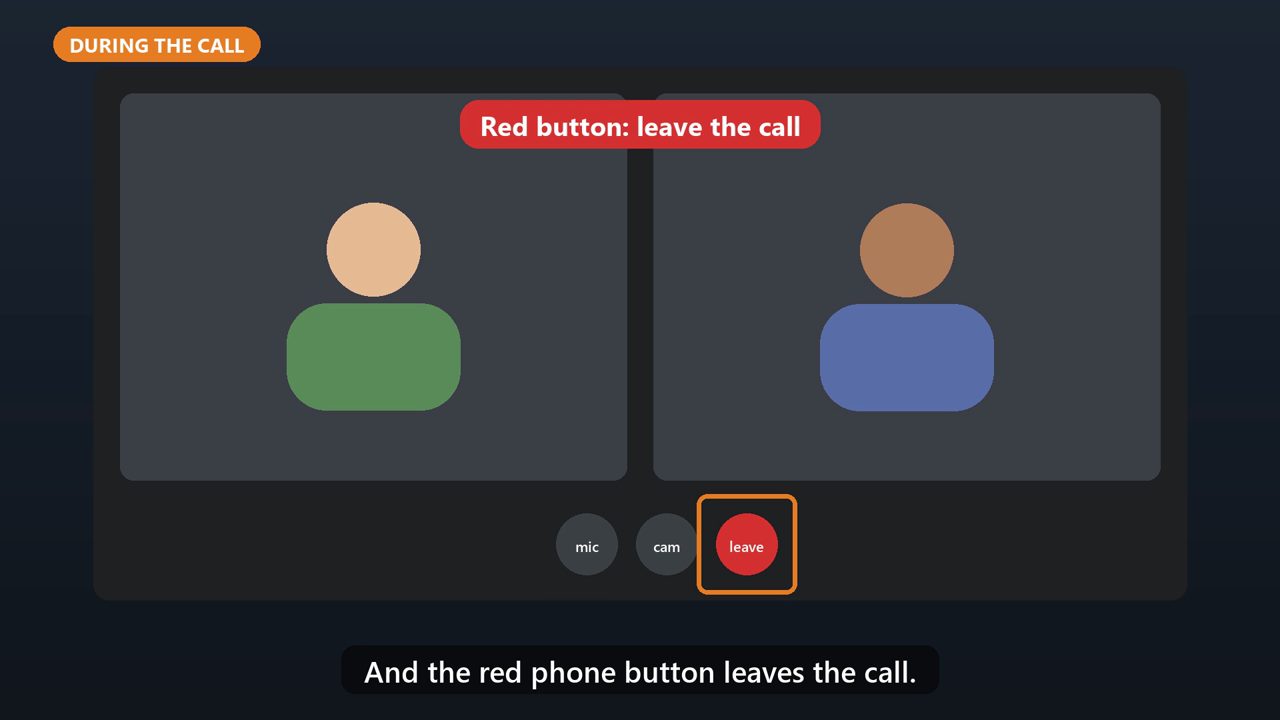
At the bottom are your buttons. The microphone mutes you. The camera turns your video on or off. And the red phone button leaves the call.
Tools that make this easier
Simple Google Sheets + Excel tools from WiscHaven. Buy once, no subscription.
Sources
Checked against the official sources above. Steps can change as apps update - tell us if something looks different: wischavenindustries@gmail.com