How-To Guides · Tech help
How to Update Your Phone (iPhone and Android)
Phone updates aren't just new features. They often fix security holes too. Here's how to check for an update, and turn on automatic updates, on an iPhone and on Android.
1. Before You Start
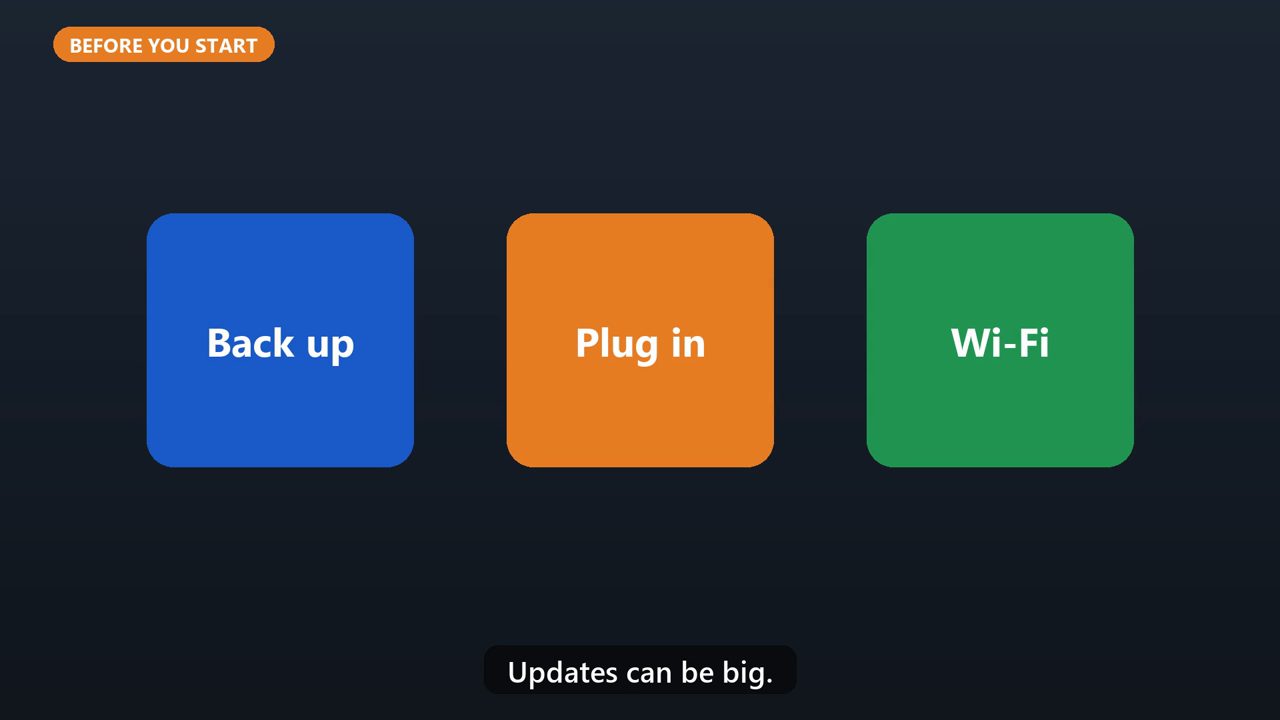
First, back up your phone. Then plug it into a charger, and connect to Wi-Fi. Updates can be big.
2. Iphone
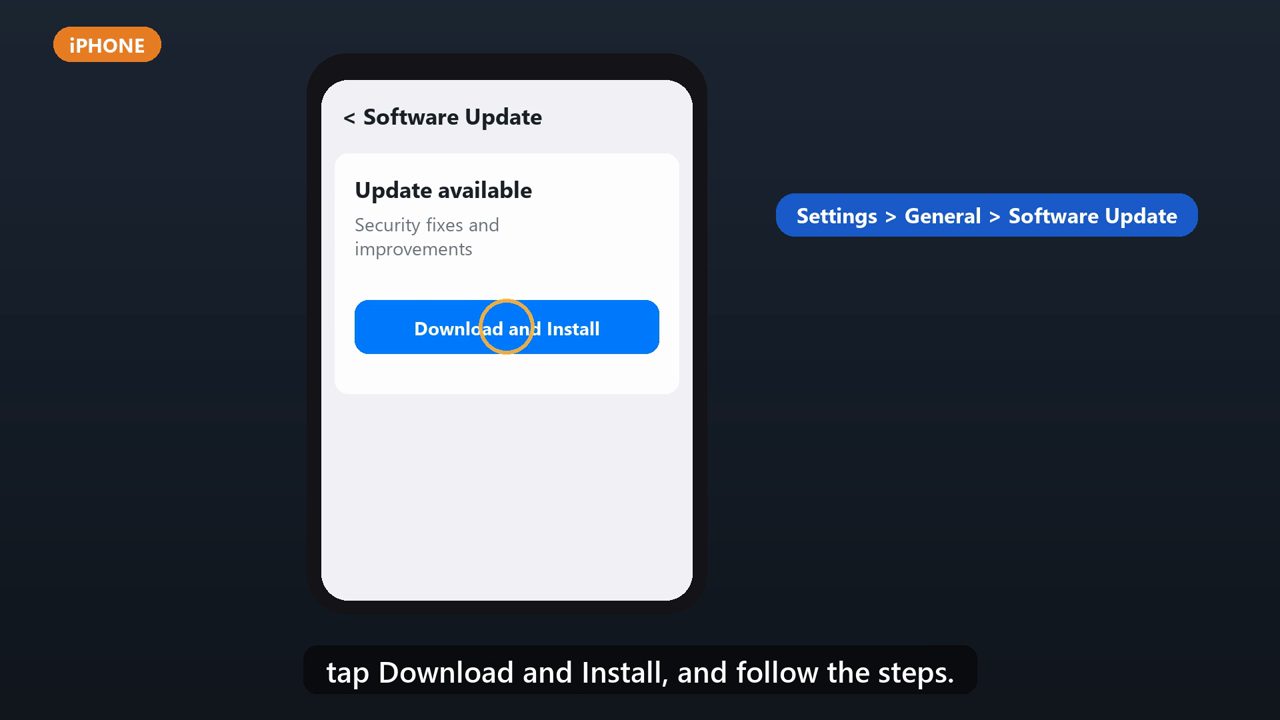
On an iPhone, open Settings, tap General, then Software Update. If there's an update, tap Download and Install, and follow the steps.
3. Iphone: Automatic Updates
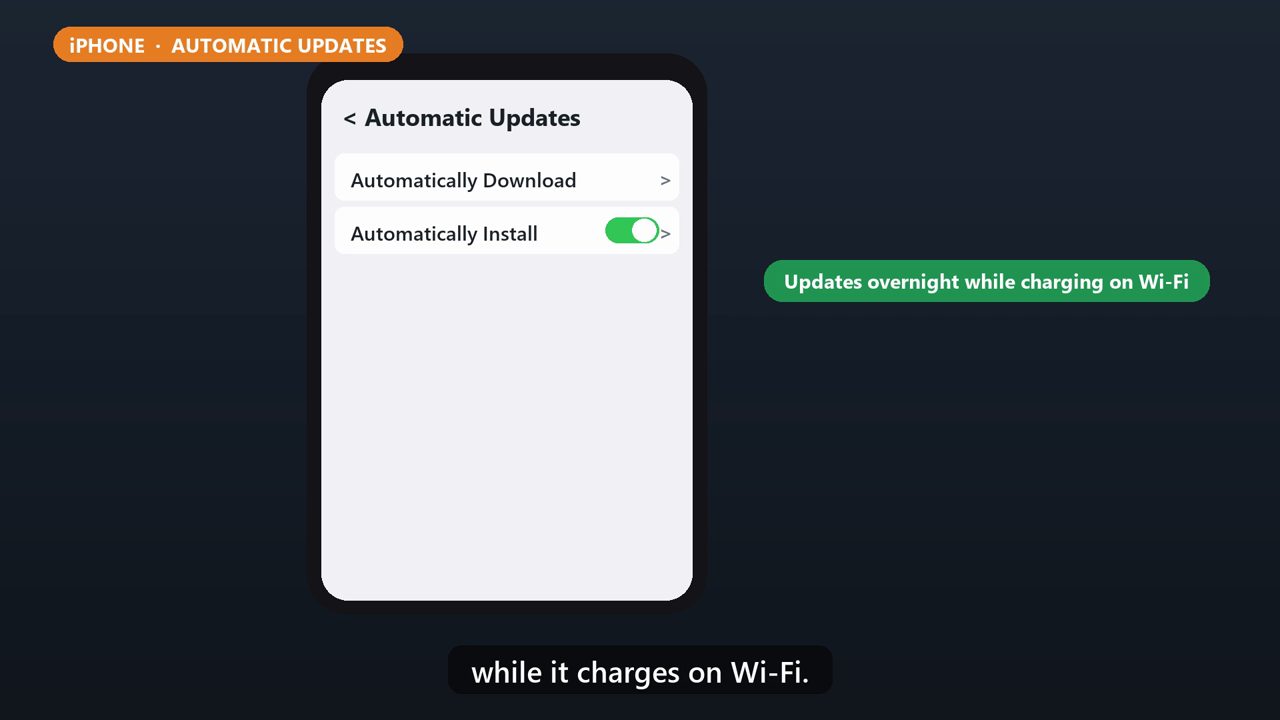
On that same screen, tap Automatic Updates, and turn on Automatically Install. Your phone will update overnight while it charges on Wi-Fi.
4. Android
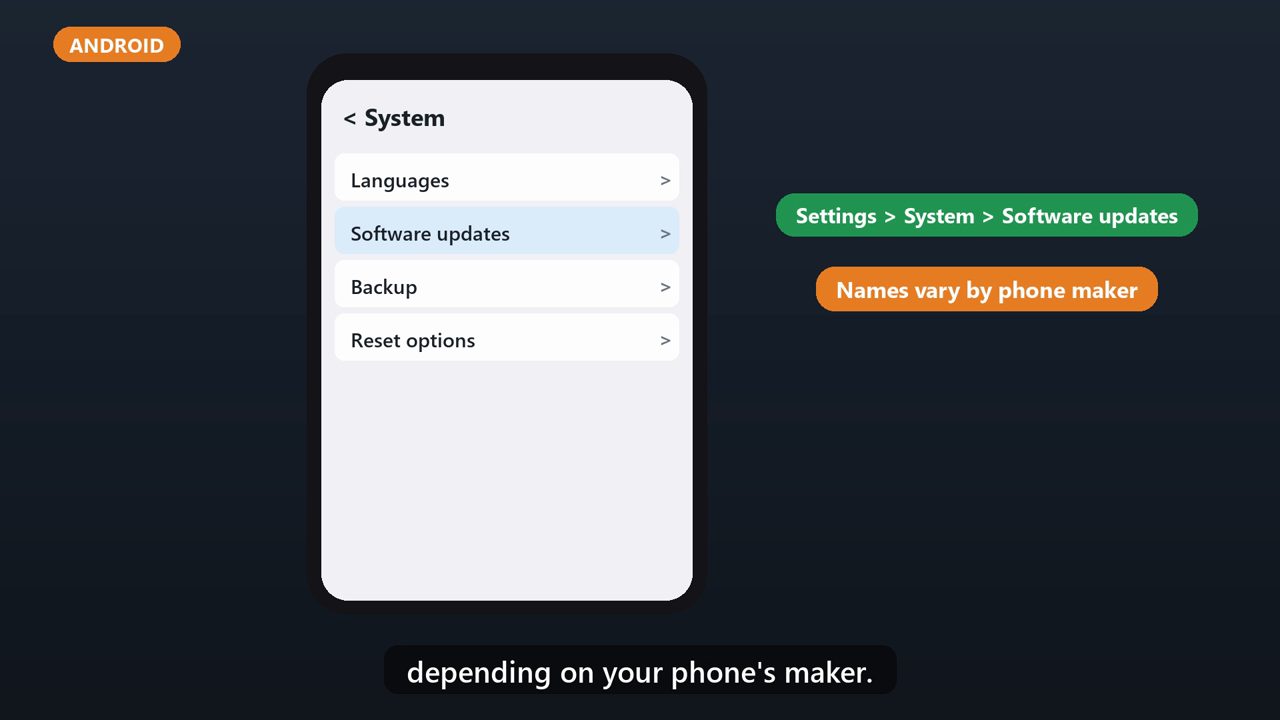
On Android, open Settings, tap System, then Software updates, and follow the steps. Menu names can be a little different depending on your phone's maker.
5. Or Tap The Notification
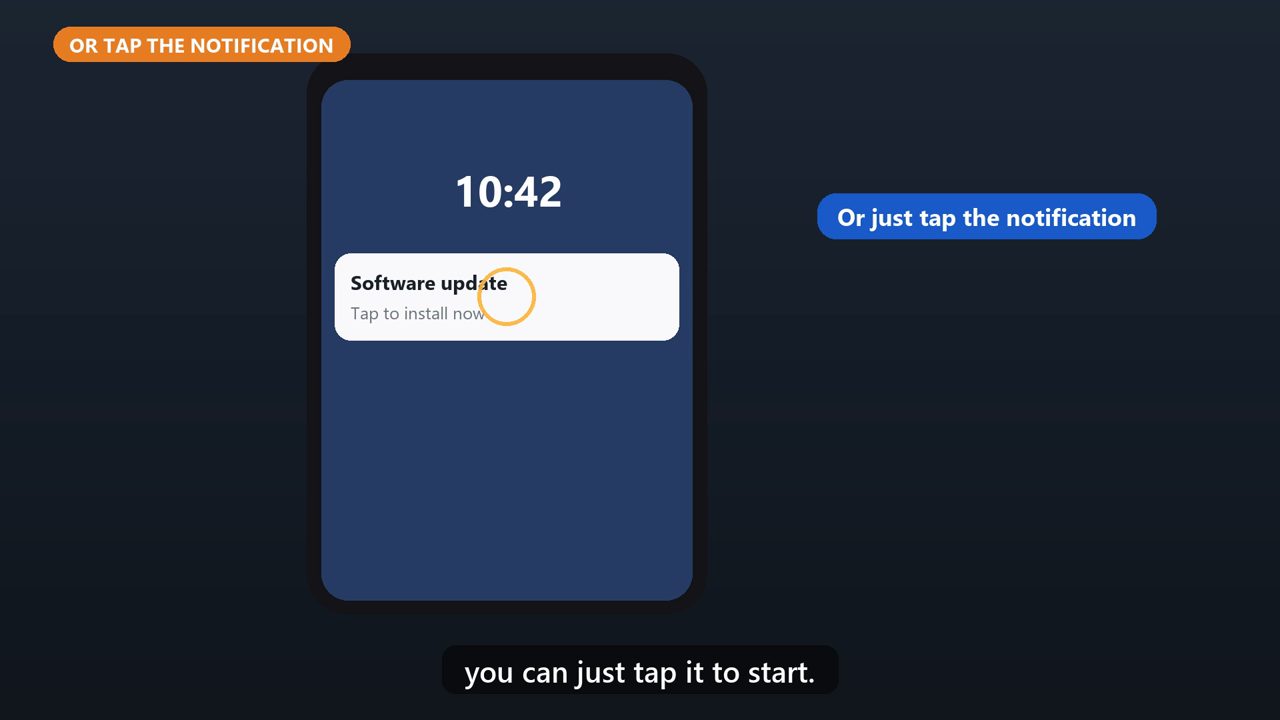
On either phone, when an update notification pops up, you can just tap it to start.
Tools that make this easier
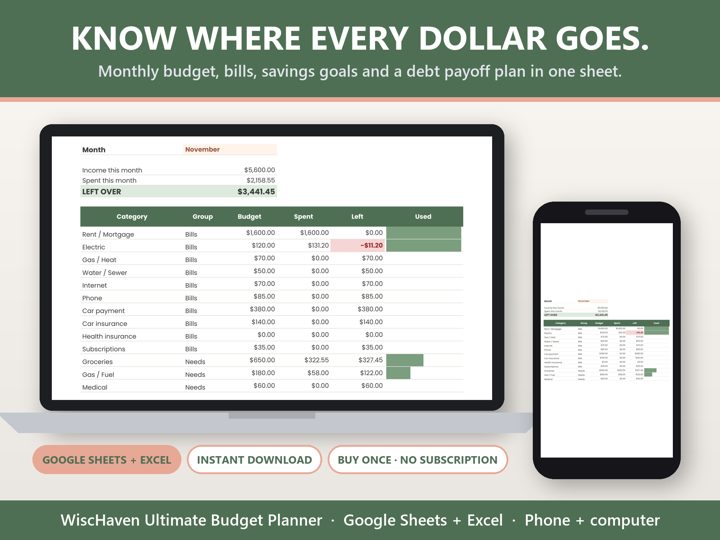
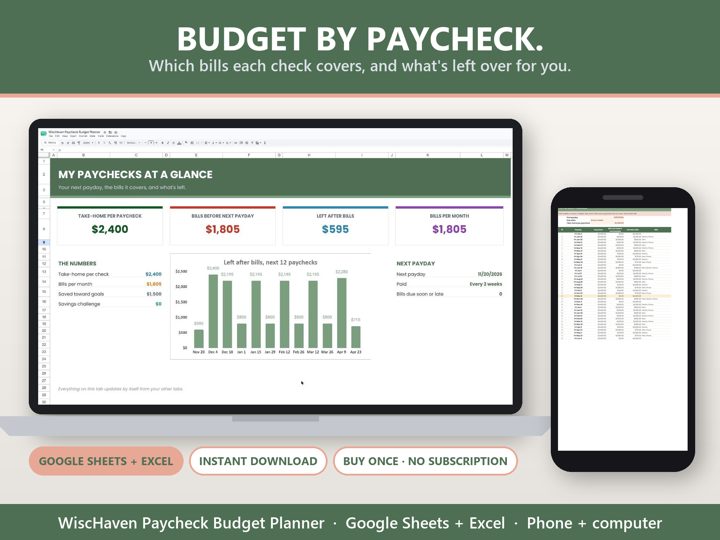
Simple Google Sheets + Excel tools from WiscHaven. Buy once, no subscription.

Sources
Checked against the official sources above. Steps can change as apps update - tell us if something looks different: wischavenindustries@gmail.com