How-To Guides · Tech help
How to Turn On Captions on YouTube (and Make Them Bigger)
Can't hear a video, or just want to read along? Turn on captions in one click. And if they're too small to read, you can make them bigger. Here's how, on a computer.
1. Step 1: Click Cc
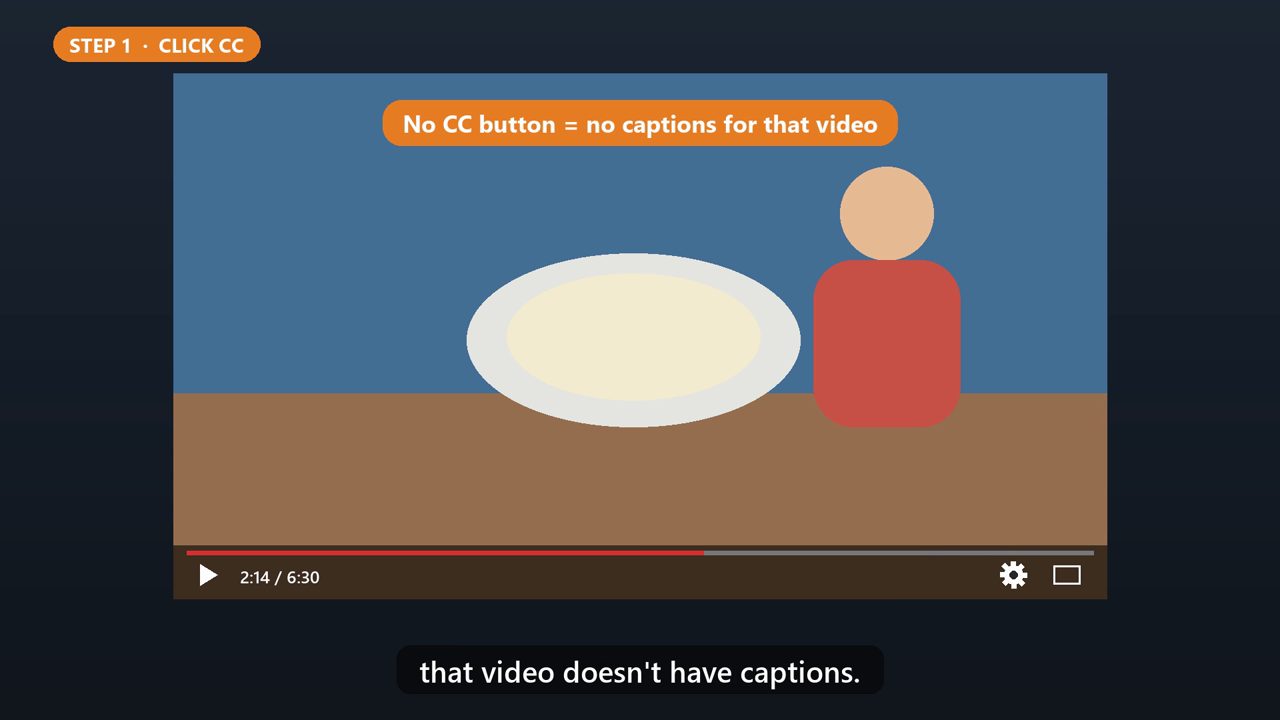
Start the video. At the bottom right of the player, click the C C button. Captions appear across the bottom. Click it again to turn them off. If you don't see the button, that video doesn't have captions.
2. Shortcut
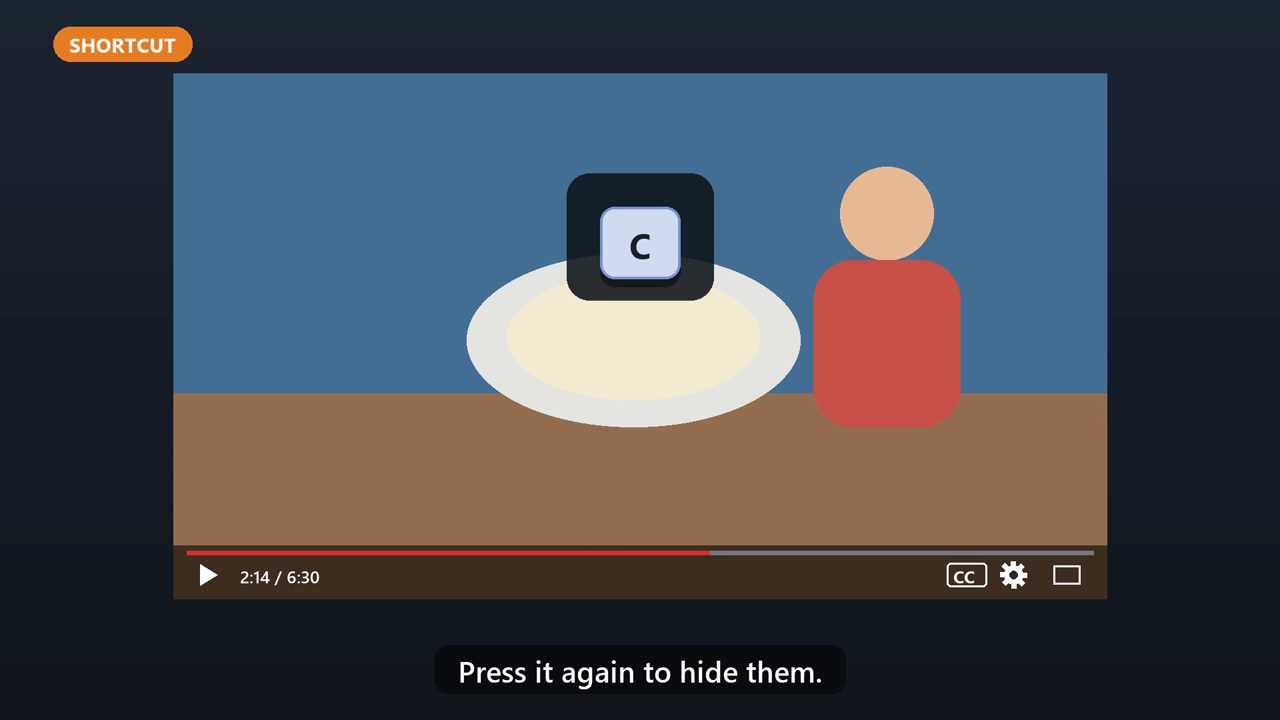
Even faster: press the C key on your keyboard. Press it again to hide them.
3. Step 2: Open The Settings
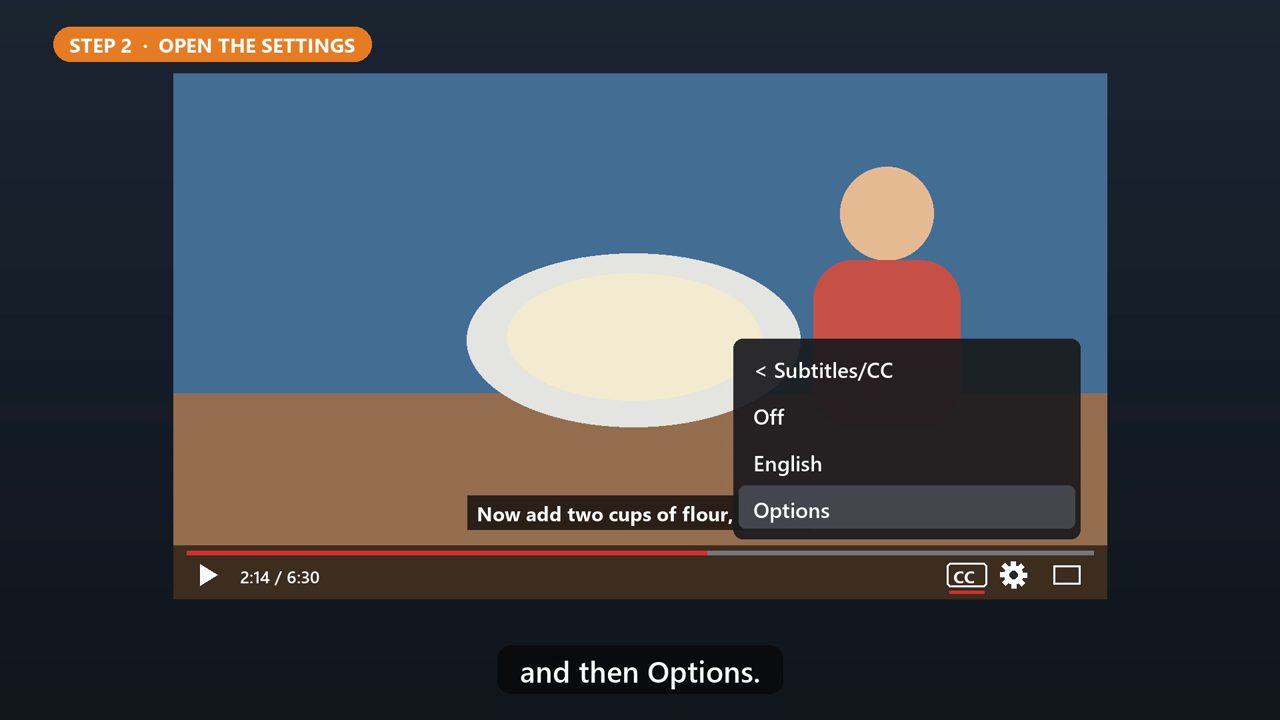
To change how they look, click the gear, right next to the C C button. Then click Subtitles, and then Options.
4. Step 3: Make Them Bigger
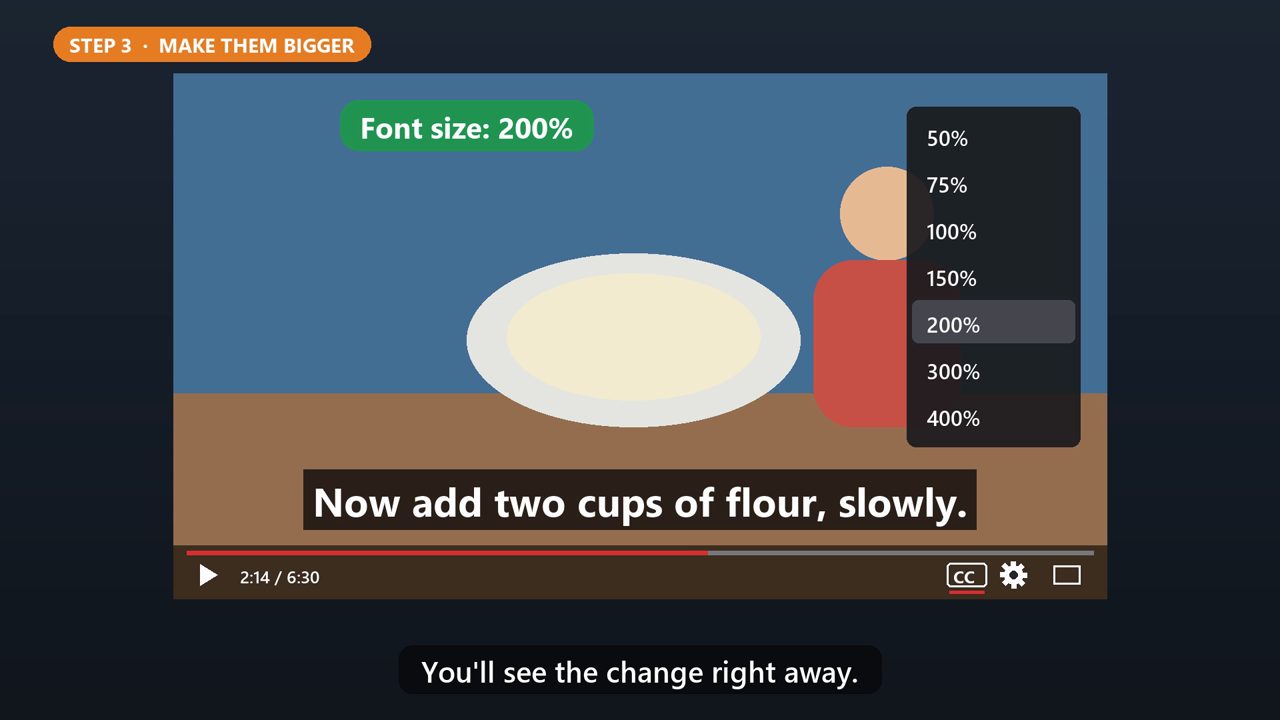
Click Font size, and pick a bigger one, like one hundred fifty, or two hundred percent. You'll see the change right away.
5. More Options
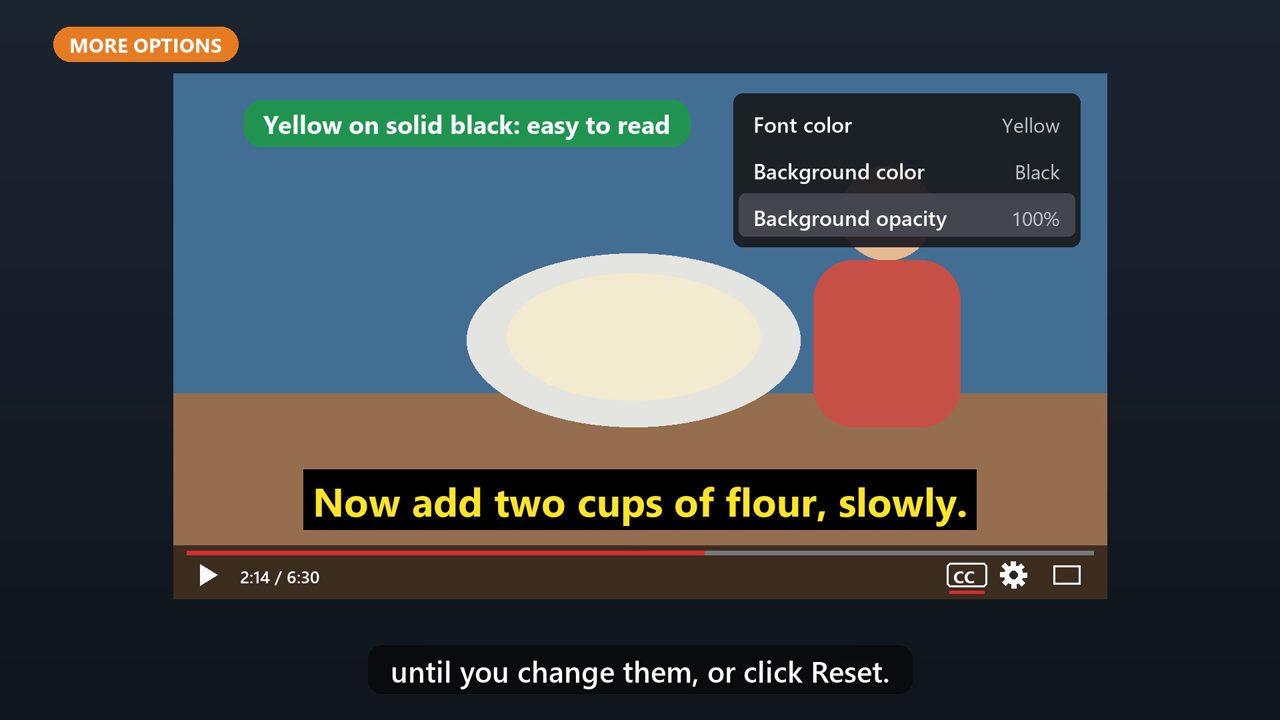
You can also change the color, and the background. Yellow text on a solid black background is easy to read for a lot of people. Your choices stay as the default, until you change them, or click Reset.
Tools that make this easier
Simple Google Sheets + Excel tools from WiscHaven. Buy once, no subscription.
Sources
Checked against the official sources above. Steps can change as apps update - tell us if something looks different: wischavenindustries@gmail.com