How-To Guides · Online safety
How to Turn On 2-Step Verification for Your Google Account
If someone steals your password, 2-Step Verification can still keep them out of your Google account. It takes about five minutes to turn on. Here's how, on a computer.
1. What It Does
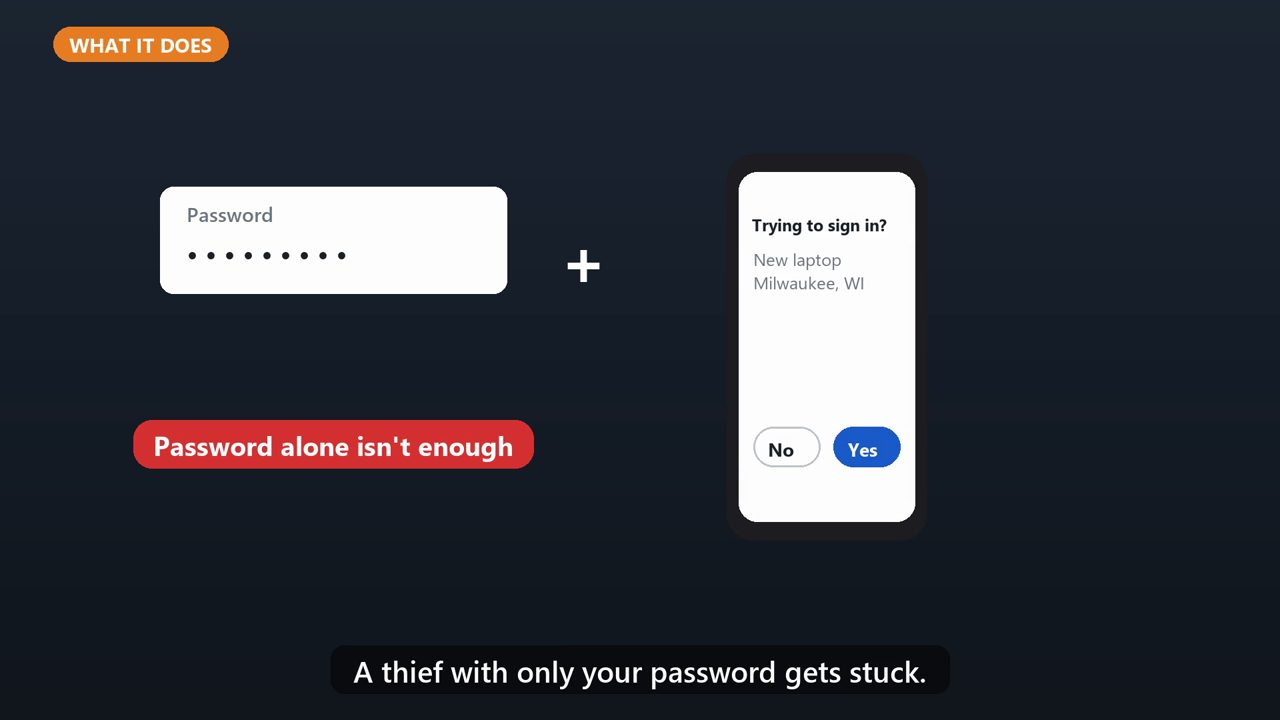
With it on, signing in on a new device takes your password, plus a second step, like tapping Yes on your phone. A thief with only your password gets stuck.
2. Step 1: Open Your Account
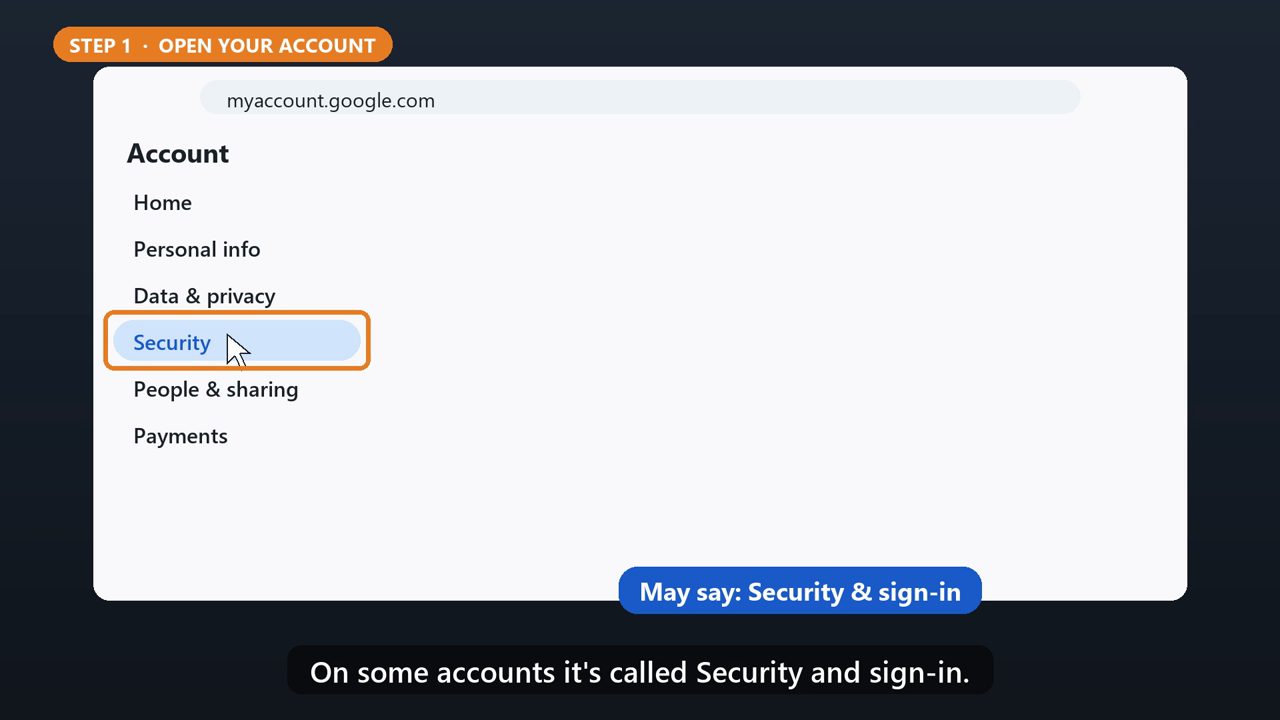
Go to myaccount.google.com, and sign in. On the left, click Security. On some accounts it's called Security and sign-in.
3. Step 2: Turn It On
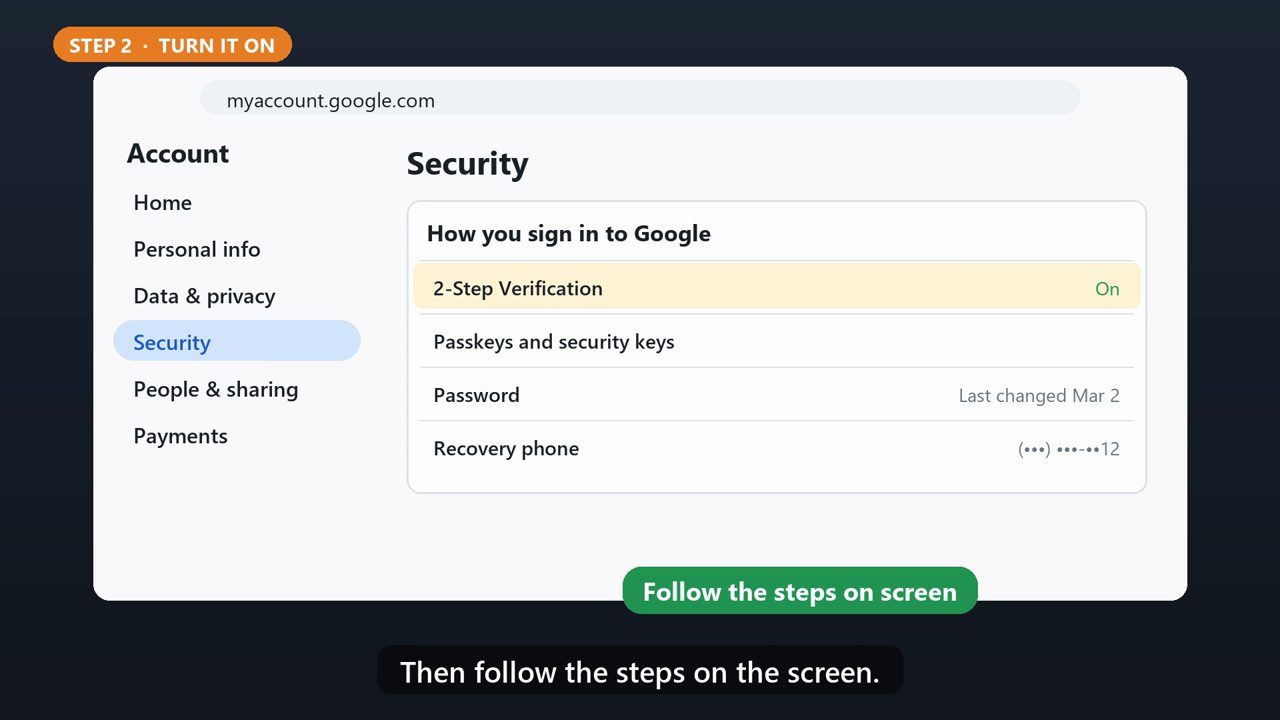
Under How you sign in to Google, find 2-Step Verification, and click Turn on. Then follow the steps on the screen.
4. Step 3: Pick Your Second Step
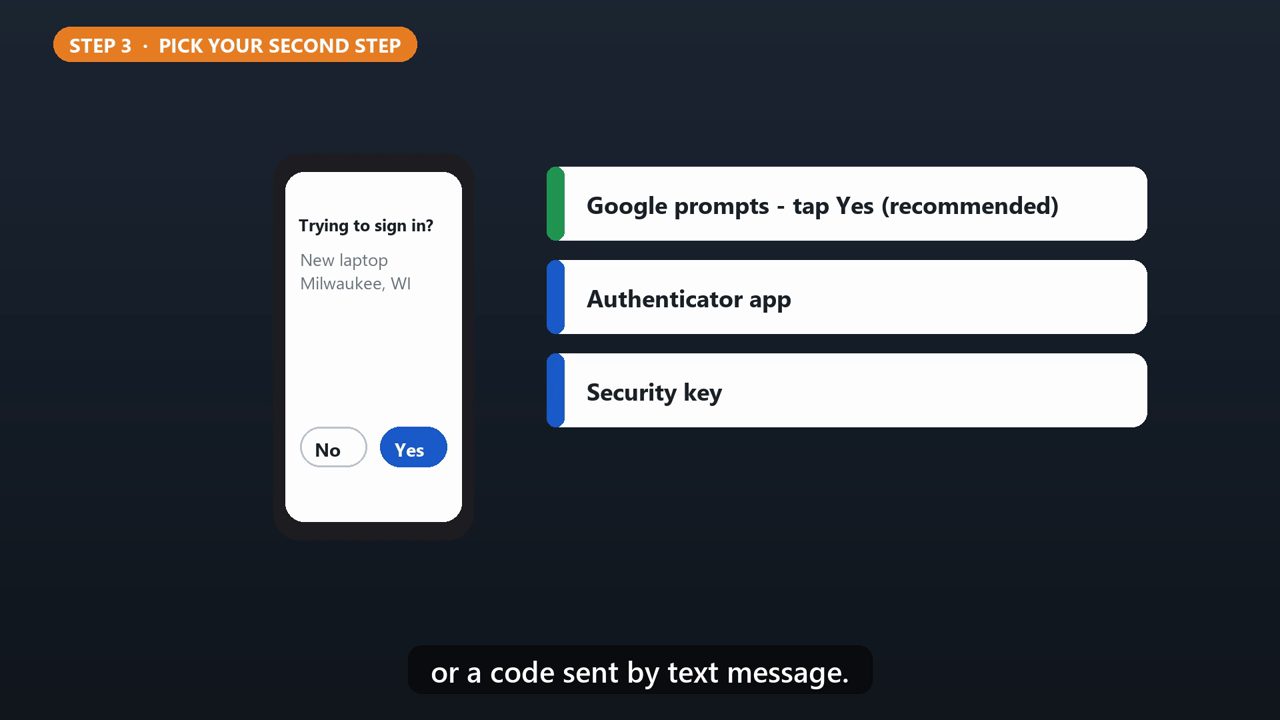
Google recommends Google prompts. You just tap Yes on your phone. You can also use an authenticator app, a security key, or a code sent by text message.
5. Step 4: Save Backup Codes
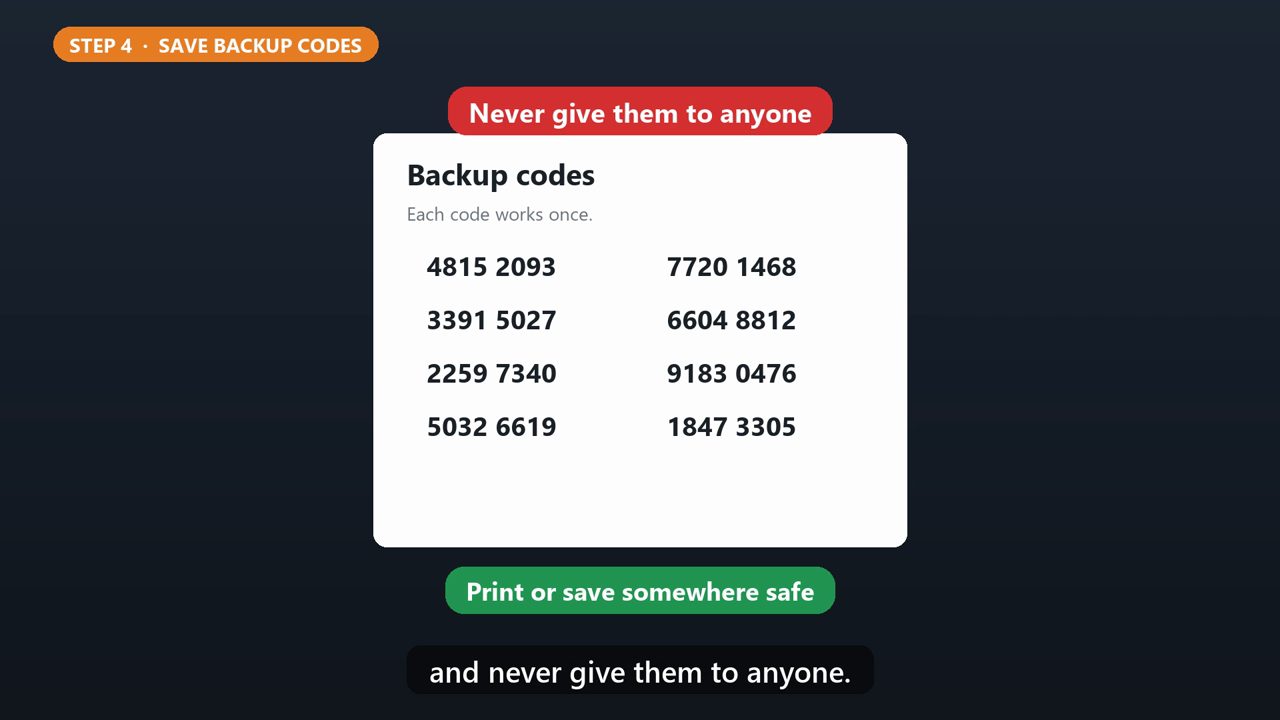
Next, get your backup codes. They let you in if you lose your phone. Print them, or save them somewhere safe, and never give them to anyone.
6. Stay Safe
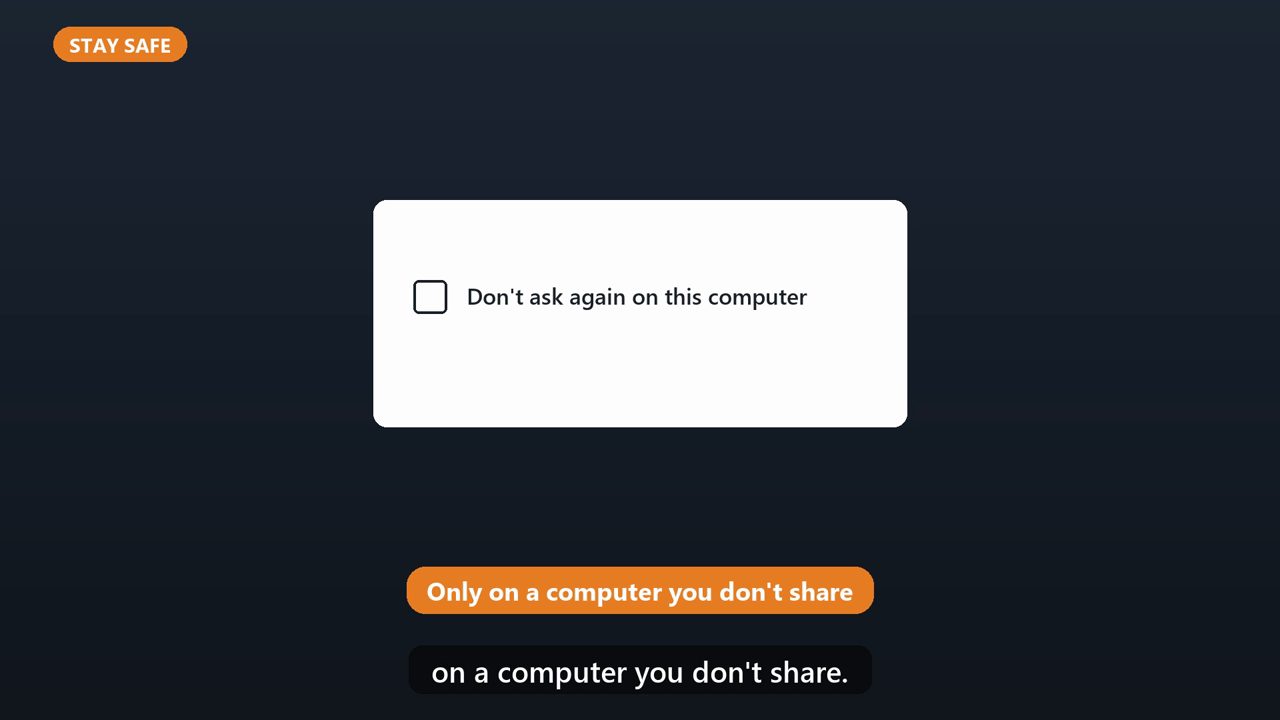
Never share a sign-in code with anyone who calls or texts you. Google won't call you to ask for one. And only check Don't ask again on this computer, on a computer you don't share.
Tools that make this easier
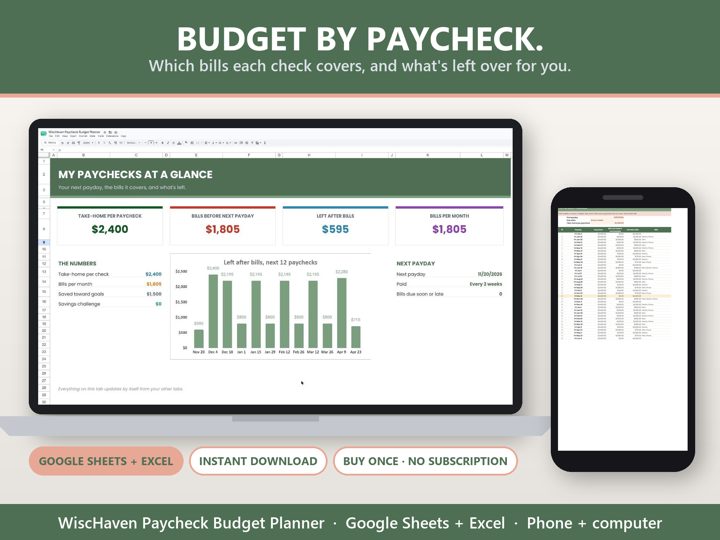
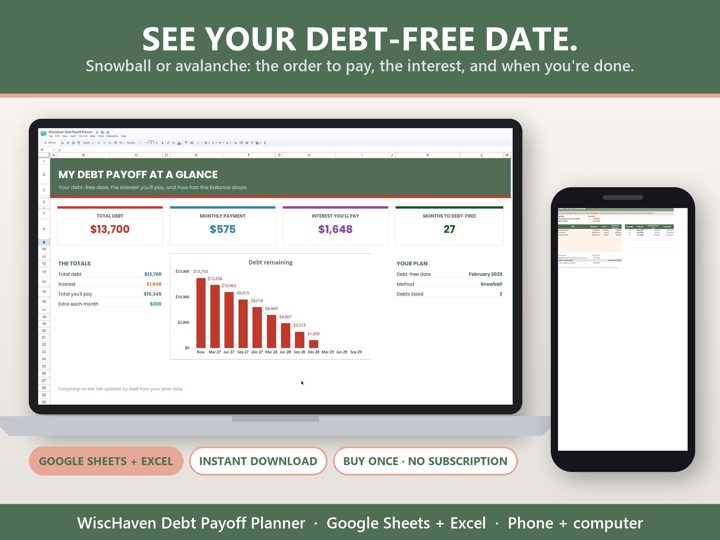
Simple Google Sheets + Excel tools from WiscHaven. Buy once, no subscription.

Sources
Checked against the official sources above. Steps can change as apps update - tell us if something looks different: wischavenindustries@gmail.com