How-To Guides · Tech help
How to Make Text Bigger on Any Website (Google Chrome)
Is the text on websites too small to read? Here are three easy ways to make it bigger in Google Chrome, plus one setting that makes every website bigger, every time.
1. Way 1: Keyboard
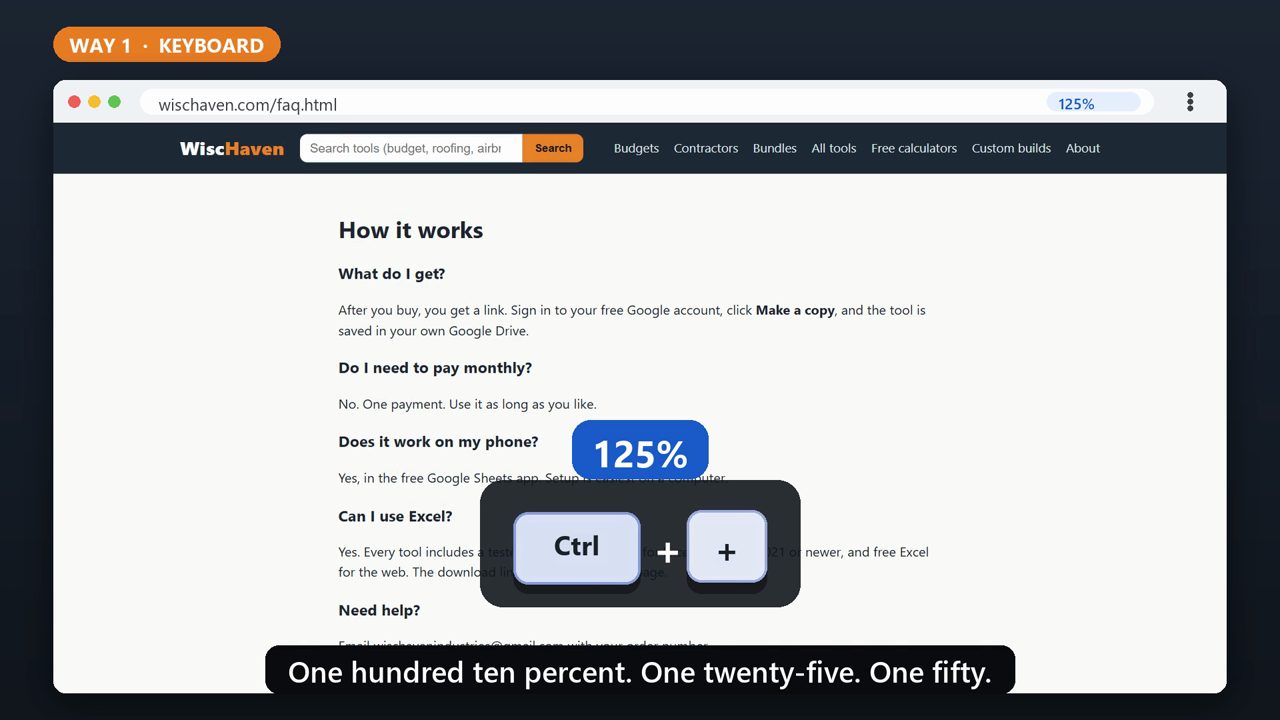
Way one. Hold down the Control key, and tap the plus key. Each tap makes everything on the page bigger. One hundred ten percent. One twenty-five. One fifty.
2. Way 1: Keyboard
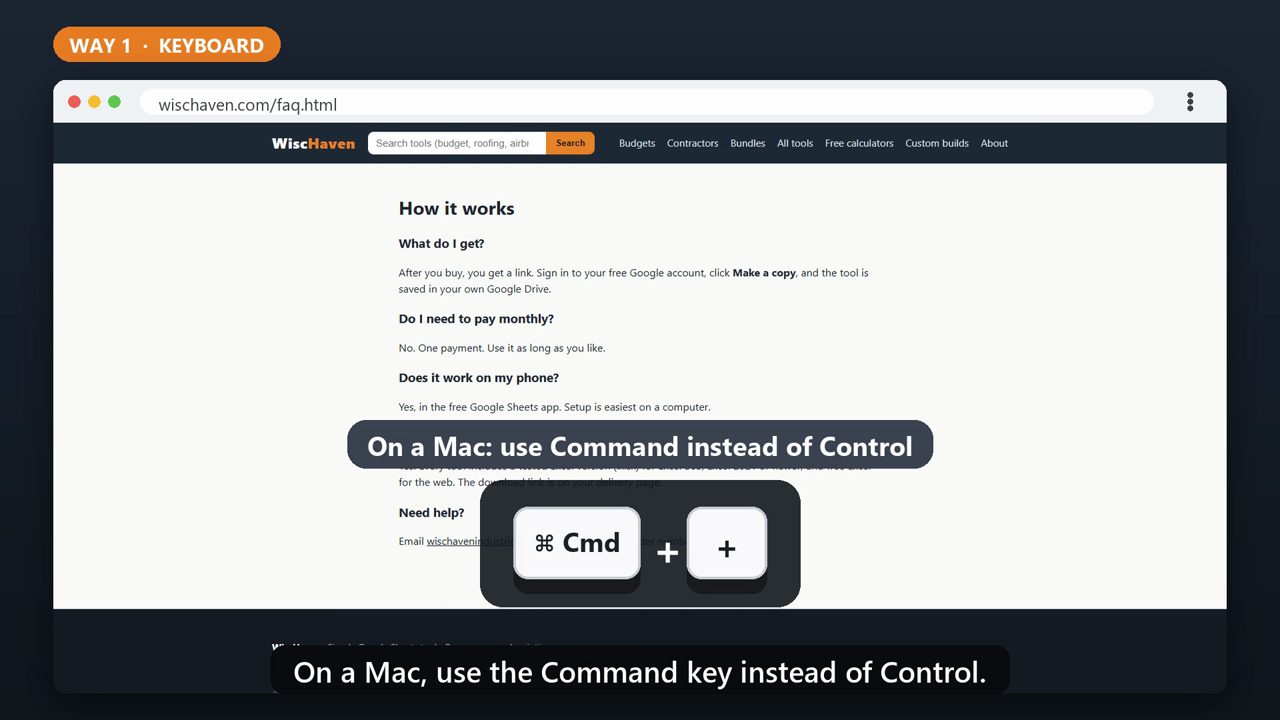
Too big? Hold Control and tap the minus key to make it smaller. And Control and zero puts the page back to normal. On a Mac, use the Command key instead of Control.
3. Way 2: Mouse Wheel
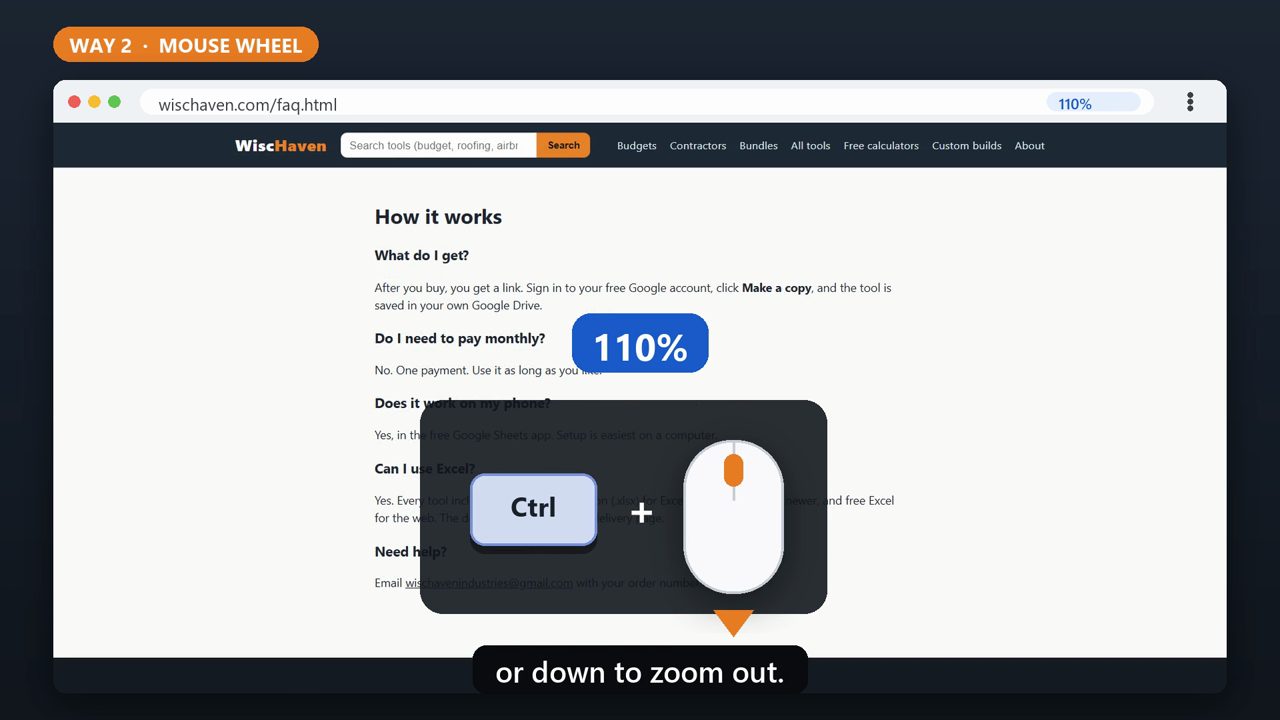
Way two. Hold down Control, and roll your mouse wheel up to zoom in, or down to zoom out.
4. Way 3: Chrome Menu
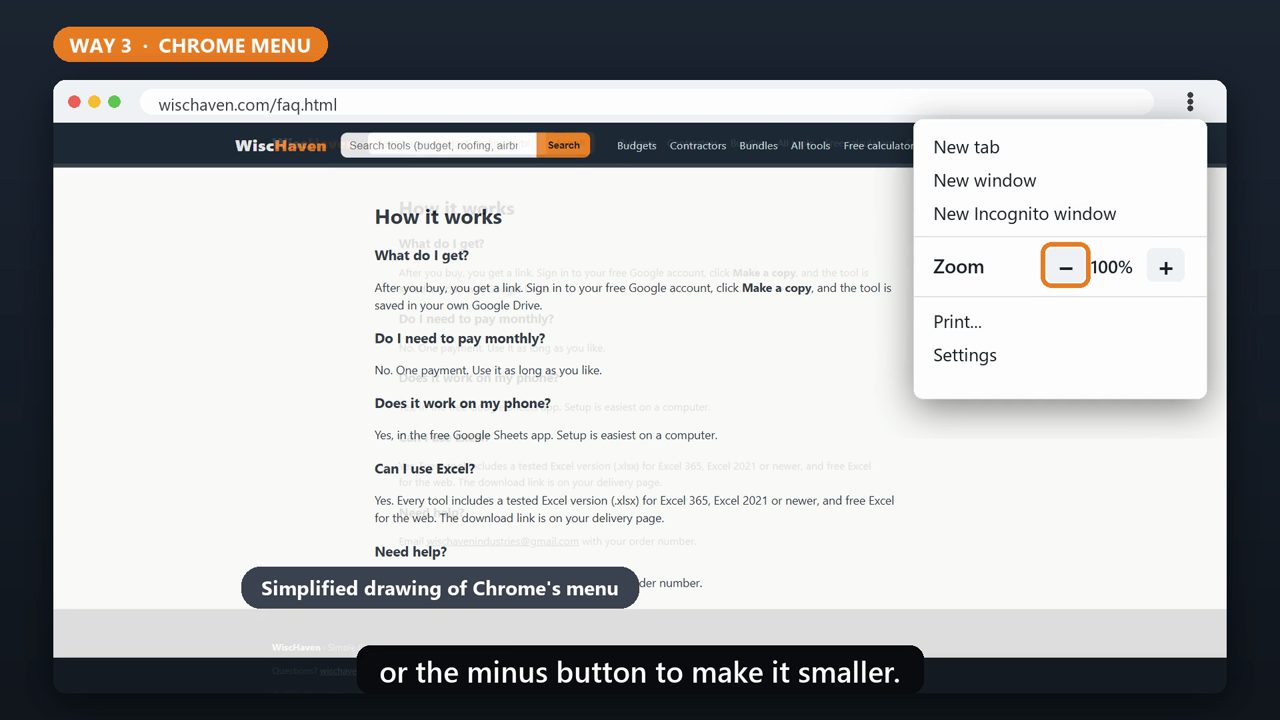
Way three, if you'd rather click. Click the three dots at the top right corner of Chrome. Next to Zoom, click the plus button to make the page bigger, or the minus button to make it smaller.
5. Make It Permanent
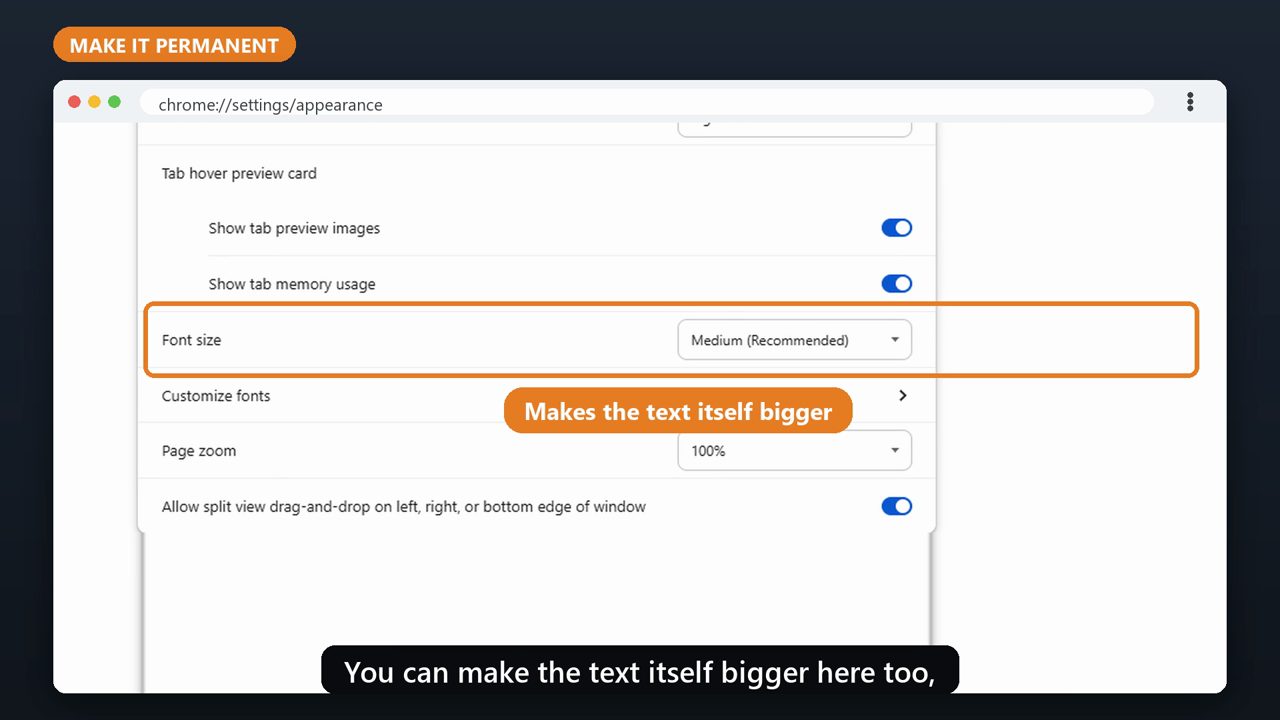
Want every website bigger, every time? Click the three dots, then Settings, then Appearance. Next to Page zoom, choose a bigger size, like one hundred twenty-five percent. You can make the text itself bigger here too, next to Font size.
Tools that make this easier
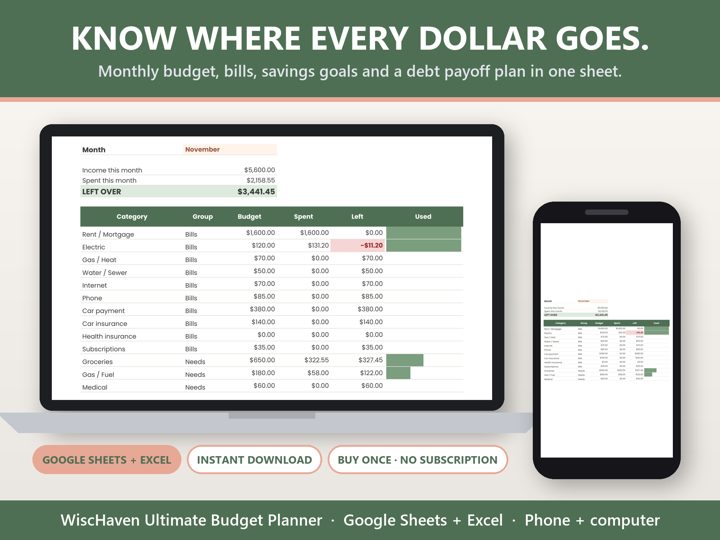
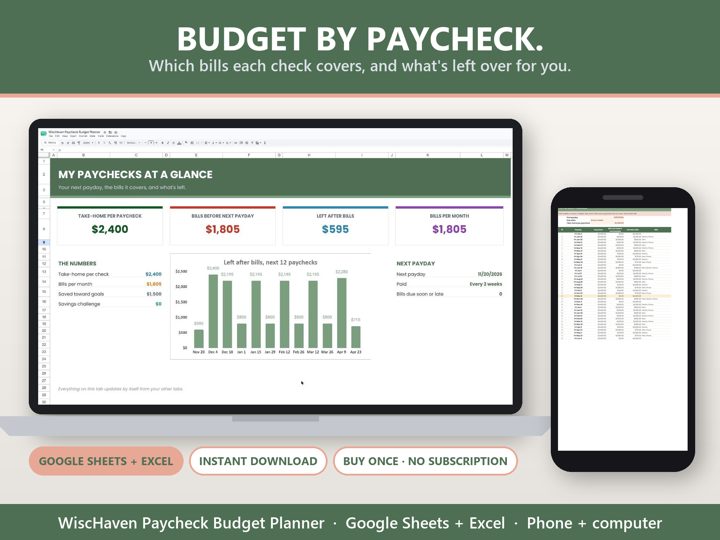
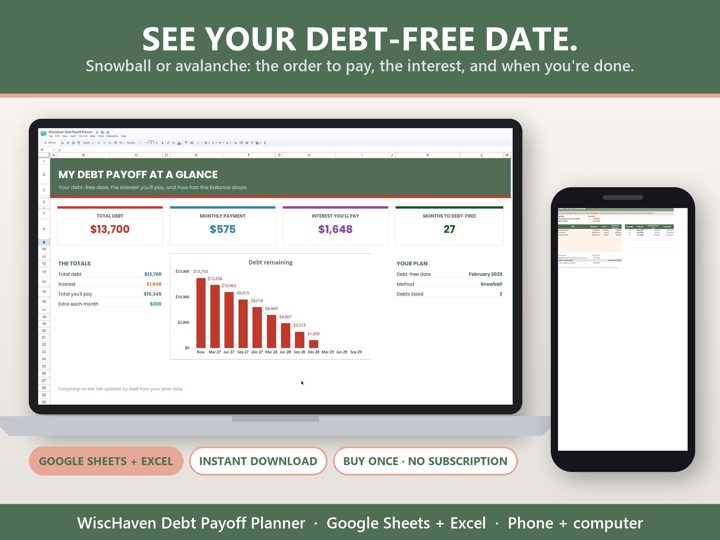
Simple Google Sheets + Excel tools from WiscHaven. Buy once, no subscription.
Sources
Checked against the official sources above. Steps can change as apps update - tell us if something looks different: wischavenindustries@gmail.com