How-To Guides · Tech help
How to Back Up Your Phone's Photos (So You Never Lose Them)
If your phone got lost or broke today, would your photos be gone too? Turning on photo backup takes about a minute. Here's how, on Android and on iPhone.
1. Android: Google Photos
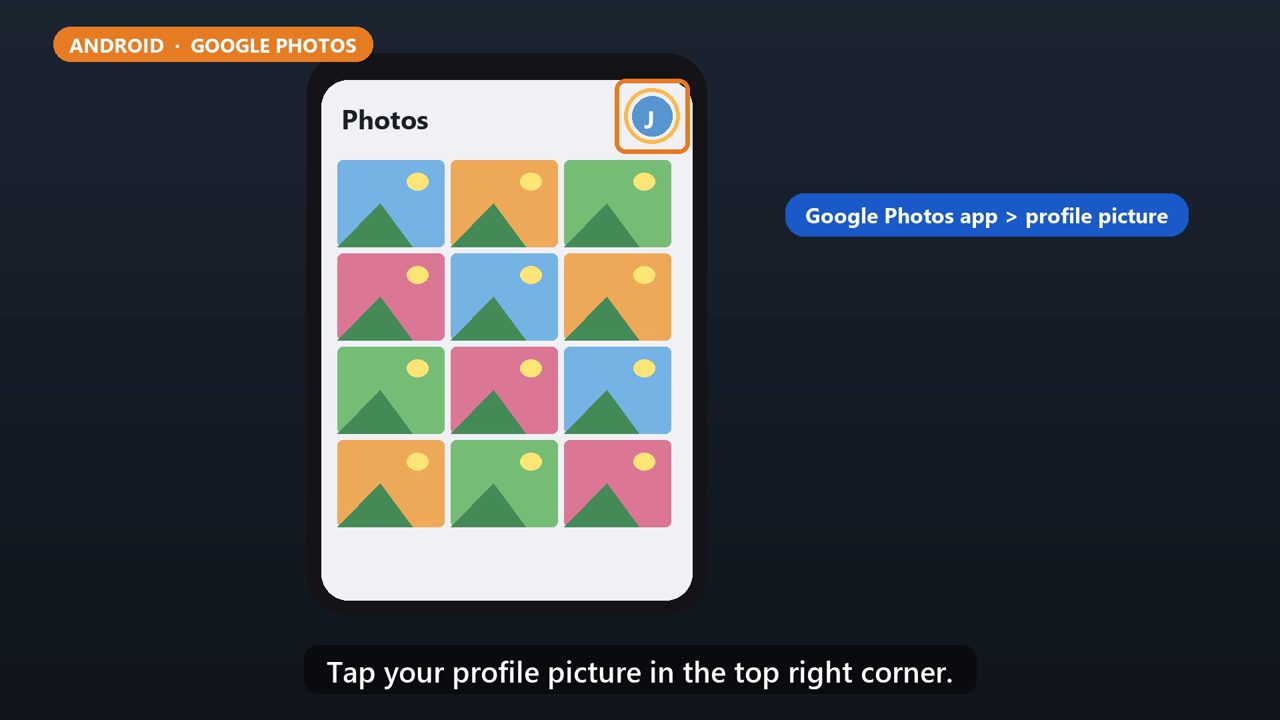
Open the Google Photos app, and sign in to your Google account. Tap your profile picture in the top right corner.
2. Turn On Backup
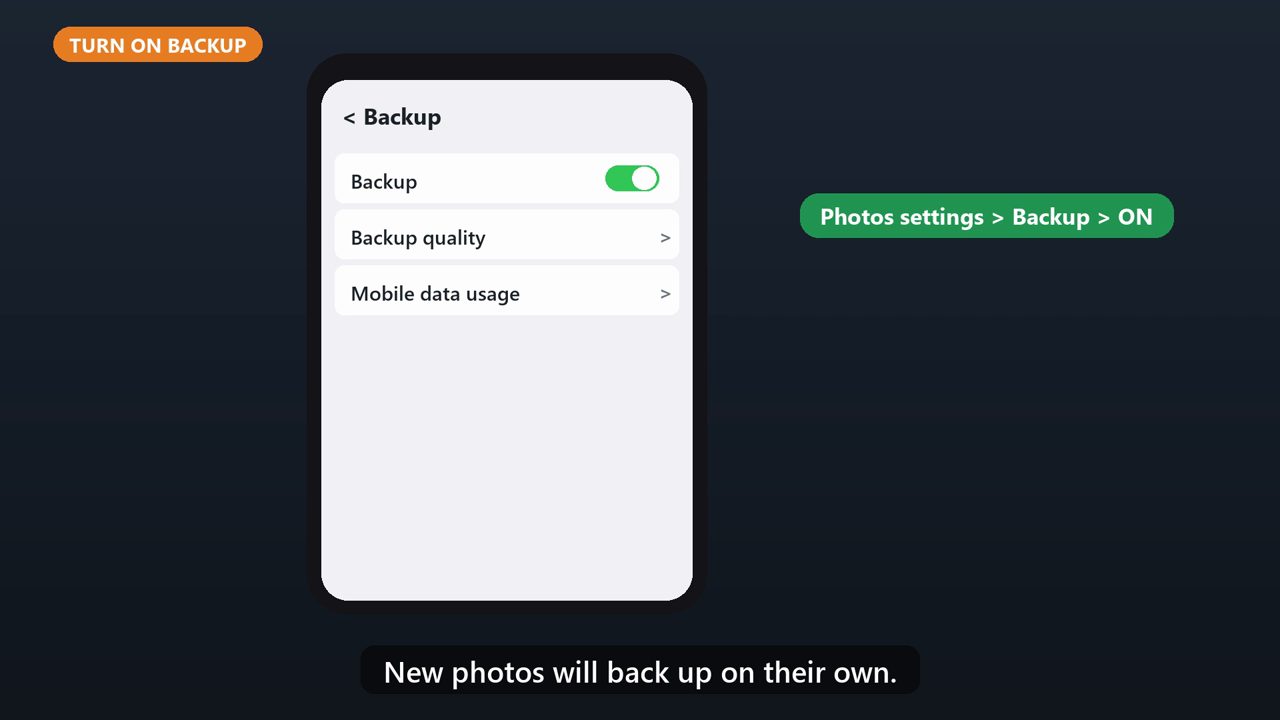
Tap Photos settings, then Backup, and turn on the Backup switch. That's it. New photos will back up on their own.
3. Check It'S Working
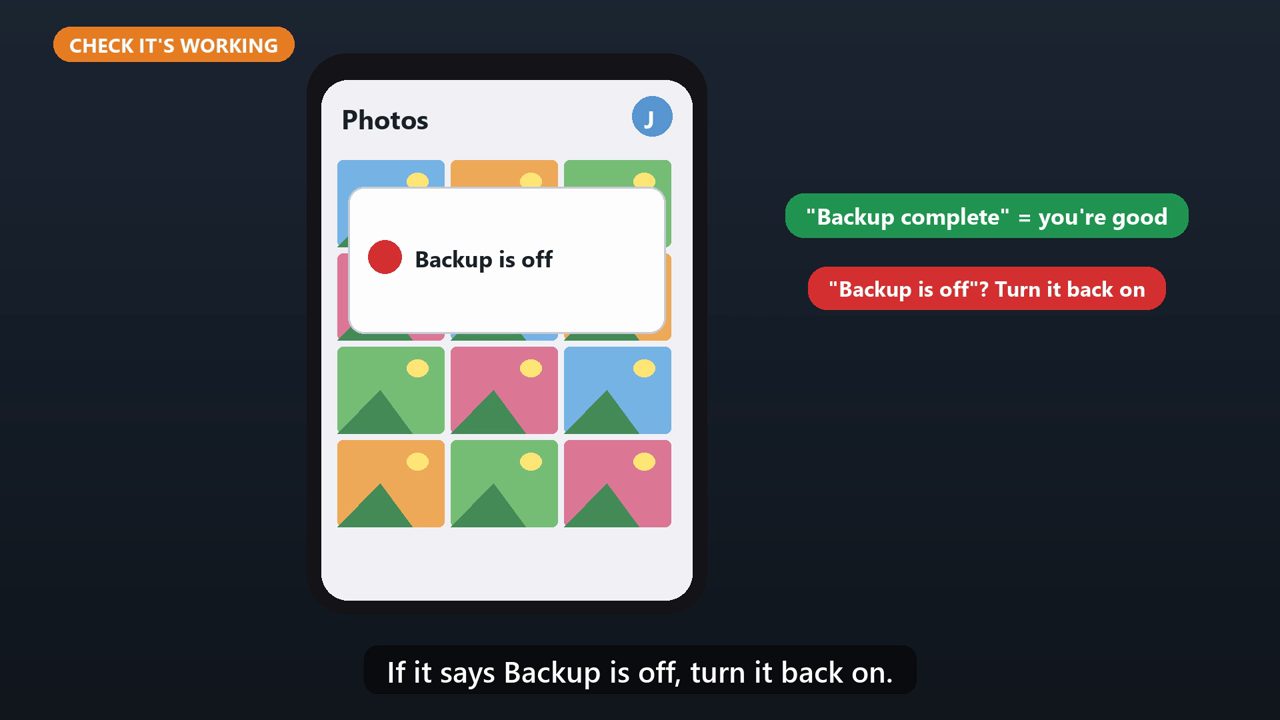
To check, tap your profile picture again. It should say Backup complete. If it says Backup is off, turn it back on.
4. Iphone: Icloud Photos
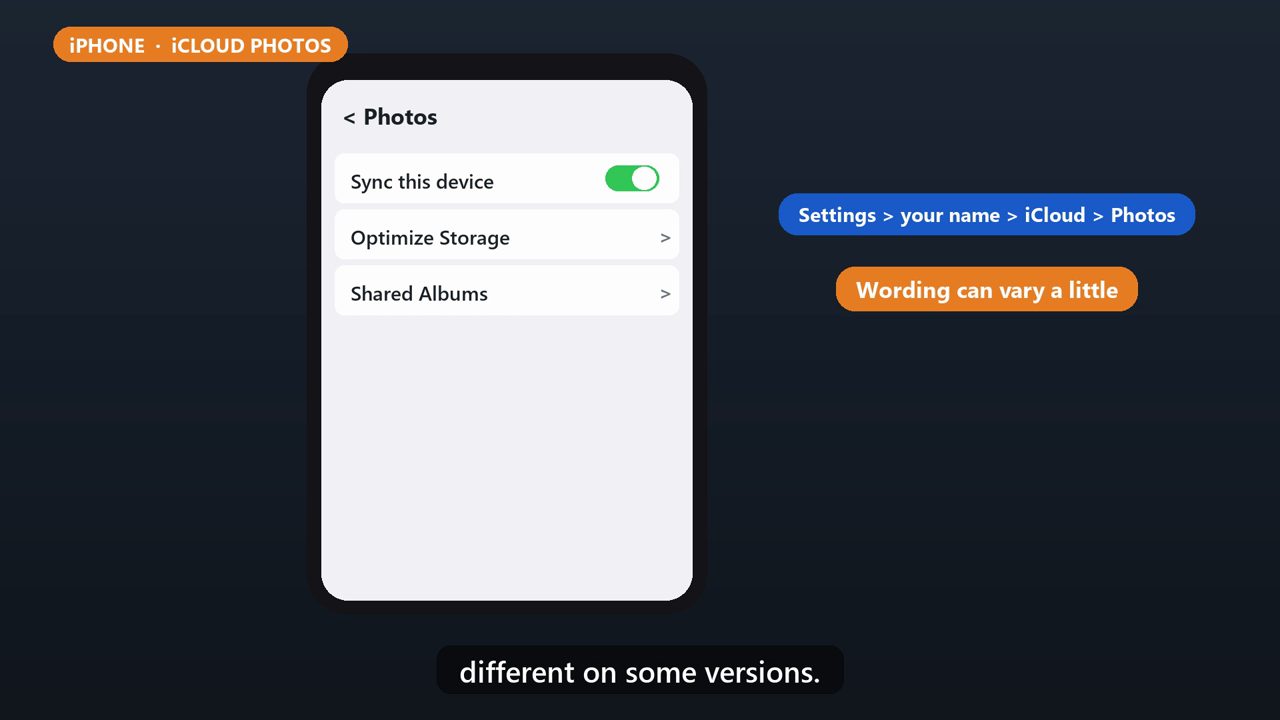
On an iPhone, open Settings, and tap your name at the top. Tap iCloud, then Photos, and turn on Sync this device. The wording can be slightly different on some versions.
5. About Storage
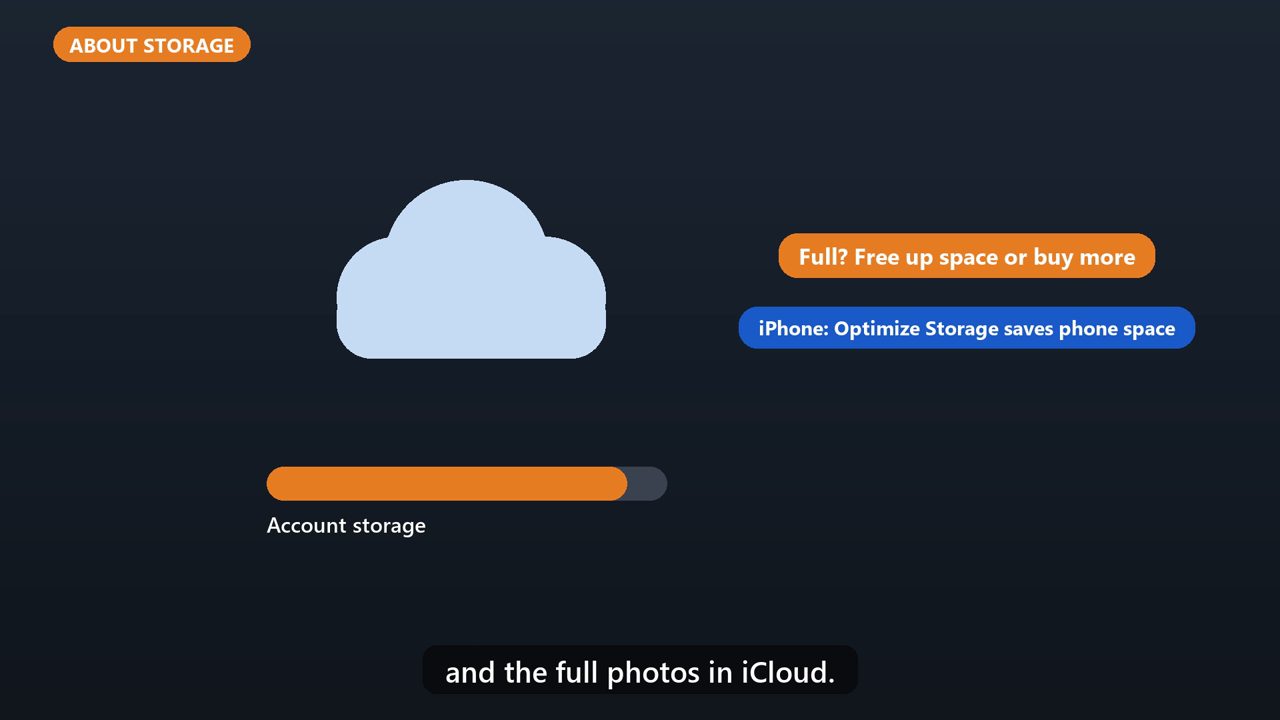
Backups use your account's cloud storage. If it fills up, you'll need to free up space, or buy more. On an iPhone, Optimize Storage keeps smaller copies on the phone, and the full photos in iCloud.
Tools that make this easier
Simple Google Sheets + Excel tools from WiscHaven. Buy once, no subscription.



Sources
Checked against the official sources above. Steps can change as apps update - tell us if something looks different: wischavenindustries@gmail.com