How-To Guides · Tech help
How to Attach a Photo to an Email in Gmail (on a Computer)
Want to email someone a photo? In Gmail on a computer, it takes about thirty seconds. Here's exactly where to click.
1. Step 1: Compose
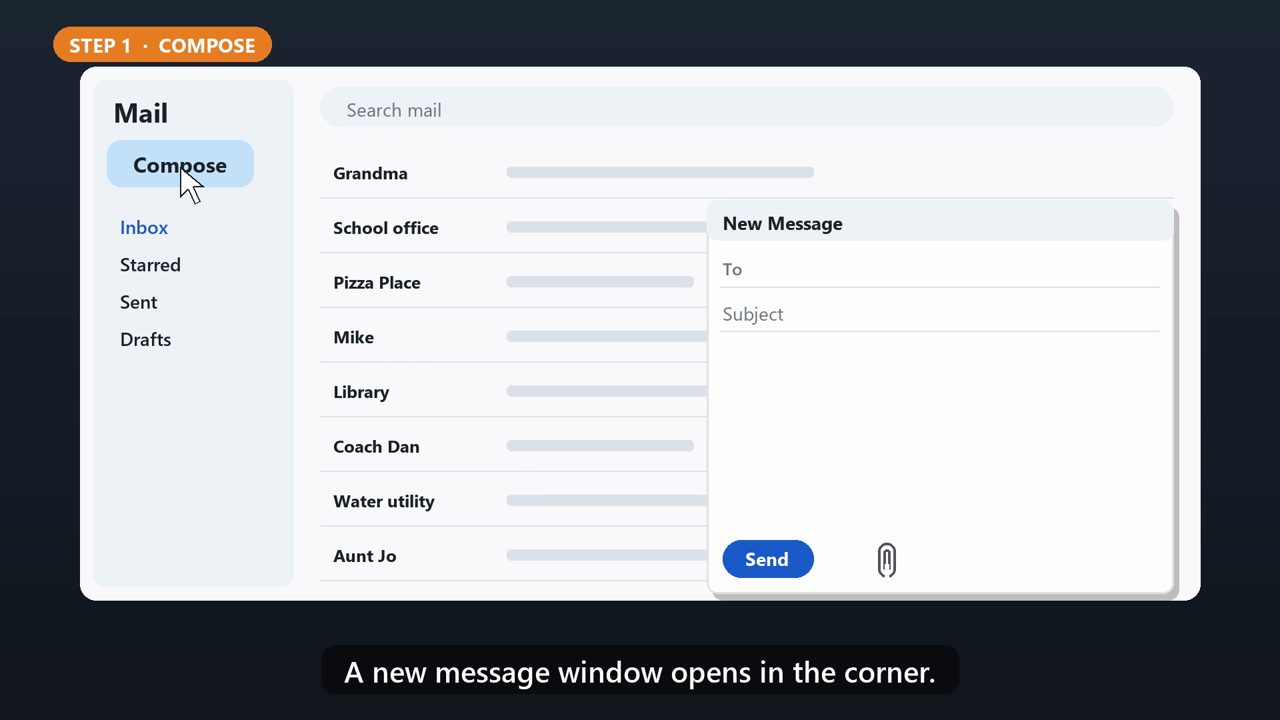
Open Gmail, and click Compose in the top left. A new message window opens in the corner.
2. Step 2: Who And What
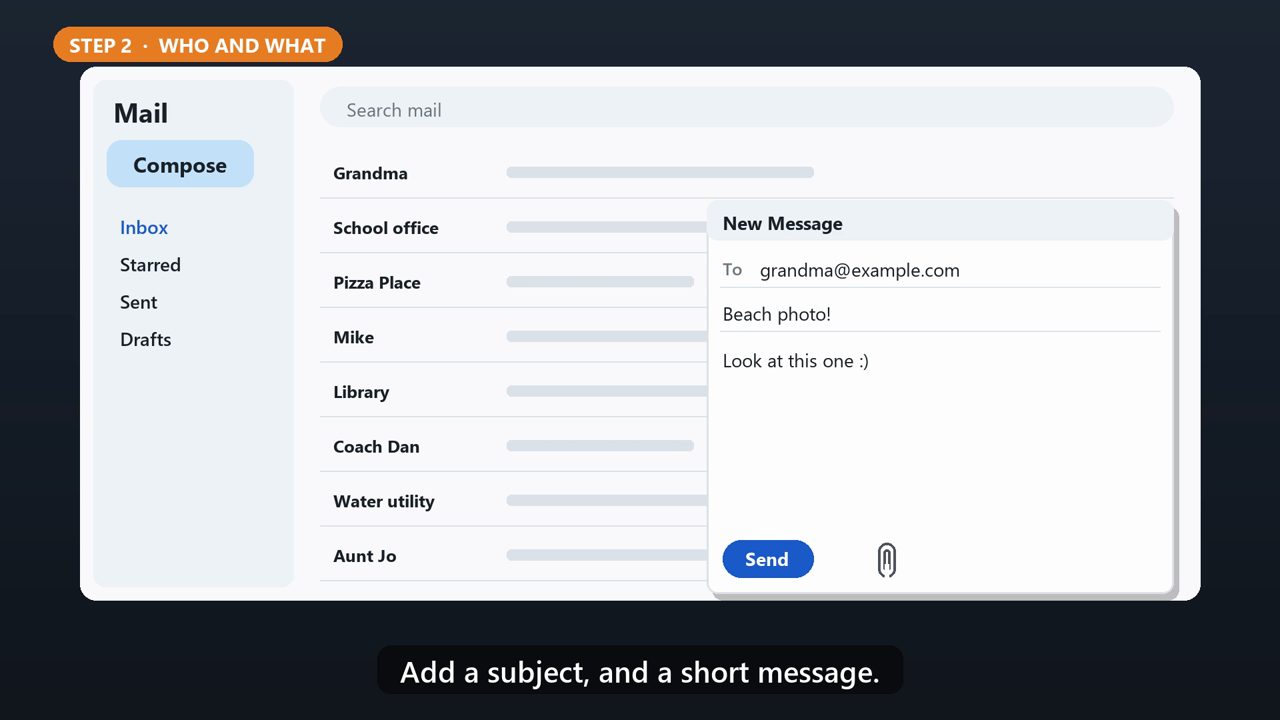
Type the person's email address in the To line. Add a subject, and a short message.
3. Step 3: Click The Paperclip
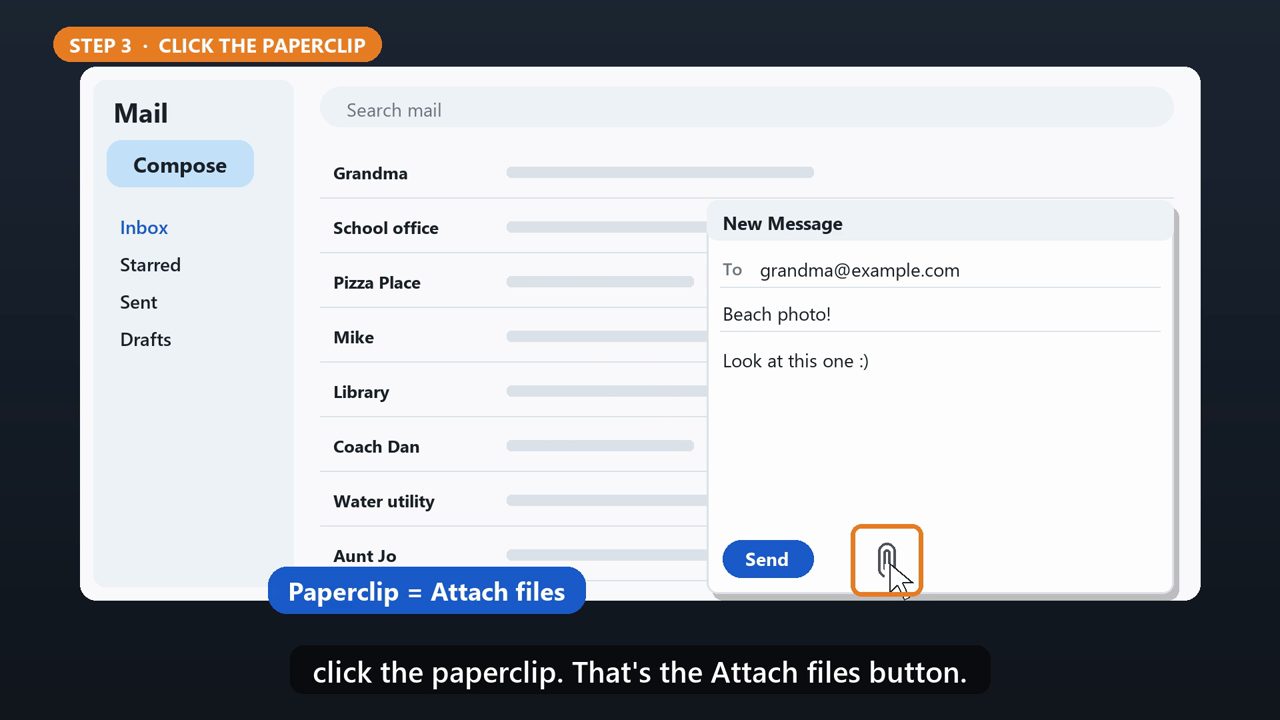
Along the bottom of the message window, click the paperclip. That's the Attach files button.
4. Step 4: Pick Your Photo
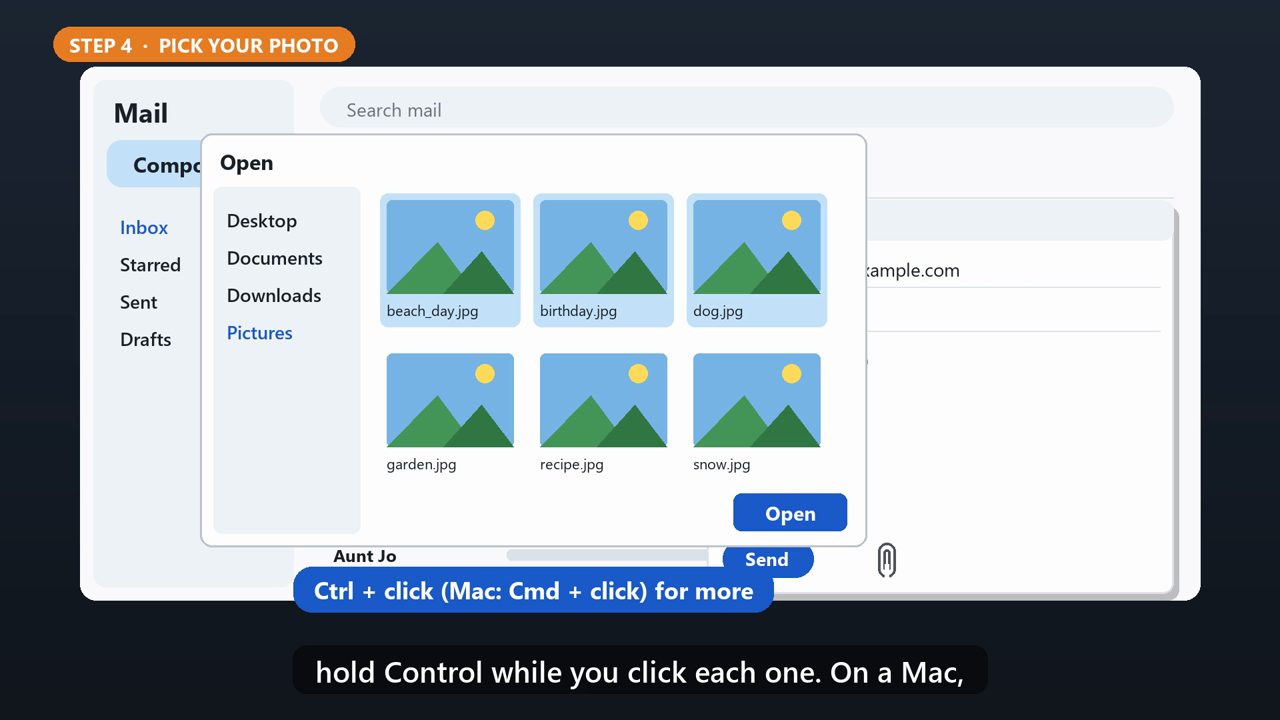
A window opens to your files. Find your photo, often in the Pictures or Downloads folder. Click it, then click Open. To send more than one, hold Control while you click each one. On a Mac, hold Command.
5. Or Drag It In
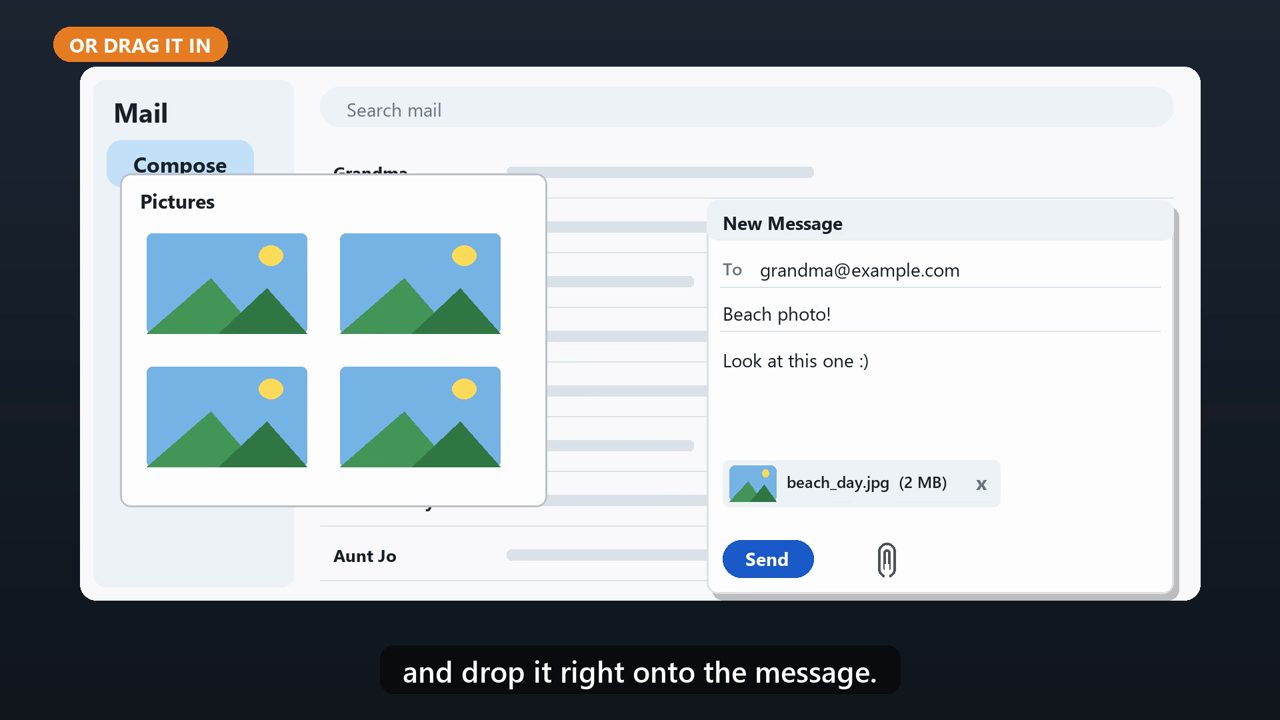
You can also just drag the photo from a folder, and drop it right onto the message.
6. Step 5: Check, Then Send
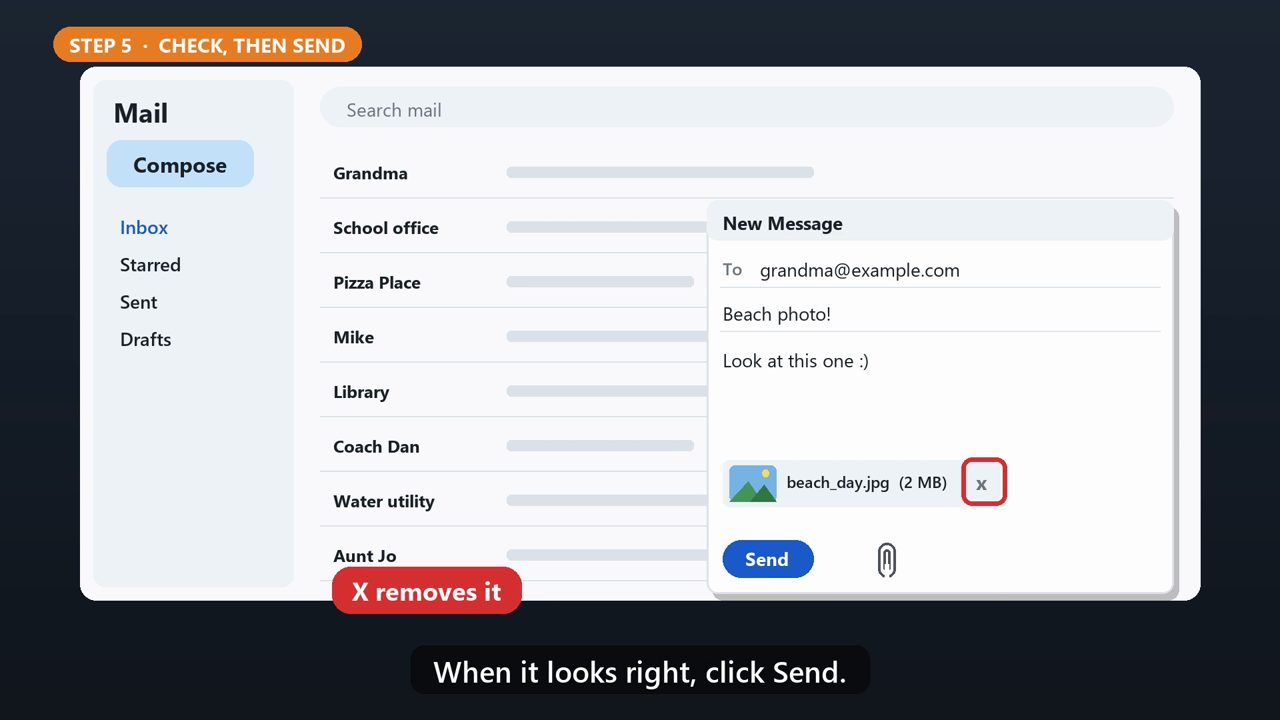
The photo shows up at the bottom of the message. Wrong one? Click the little X next to it. When it looks right, click Send.
7. Big Files
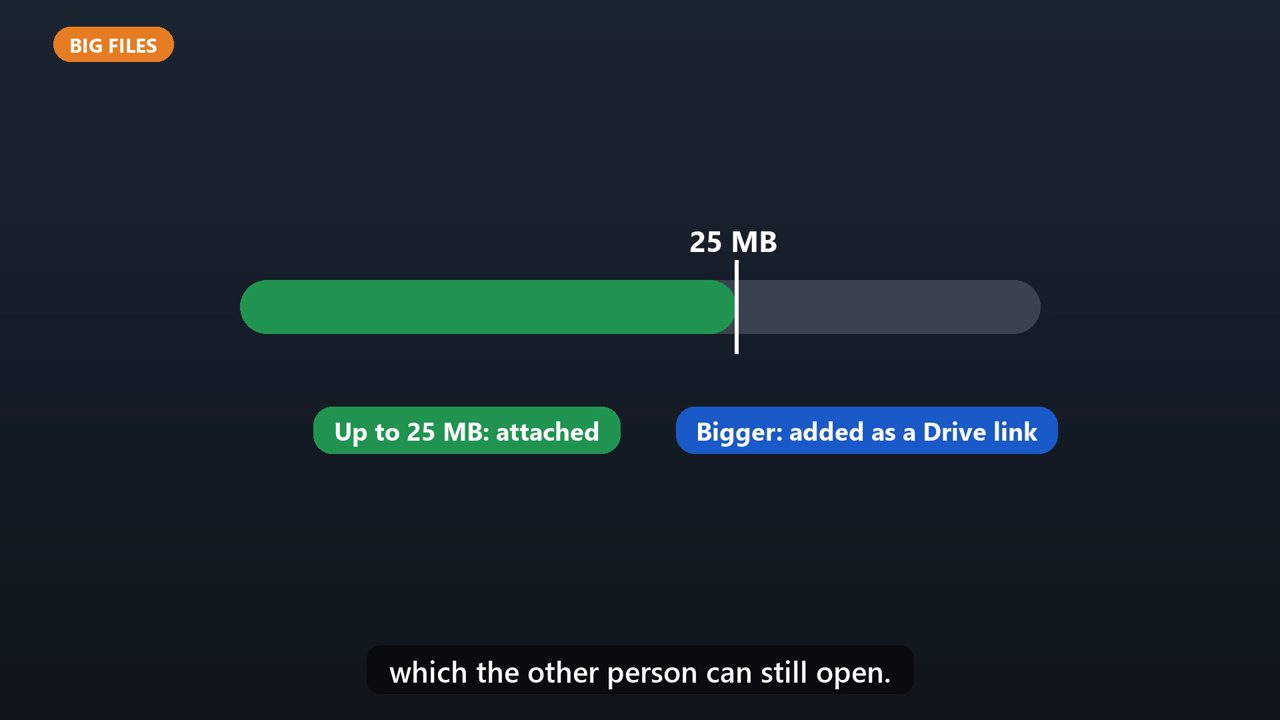
Personal Gmail accounts can attach up to twenty five megabytes. Anything bigger is added as a Google Drive link instead, which the other person can still open.
Tools that make this easier
Simple Google Sheets + Excel tools from WiscHaven. Buy once, no subscription.
Sources
Checked against the official sources above. Steps can change as apps update - tell us if something looks different: wischavenindustries@gmail.com